
Phone
How to Choose Automatic or Manual Sync
Choose when aListEngine uploads your mobile work, control automatic cellular uploads, and check pending sync.
Simple steps. Clear pictures. Help at your own pace.
5 articles
Phone
Choose when aListEngine uploads your mobile work, control automatic cellular uploads, and check pending sync.
iPhone + Android
Save additional copies of aListEngine photos and audio, choose an Android backup folder, and understand how backup differs from sync.
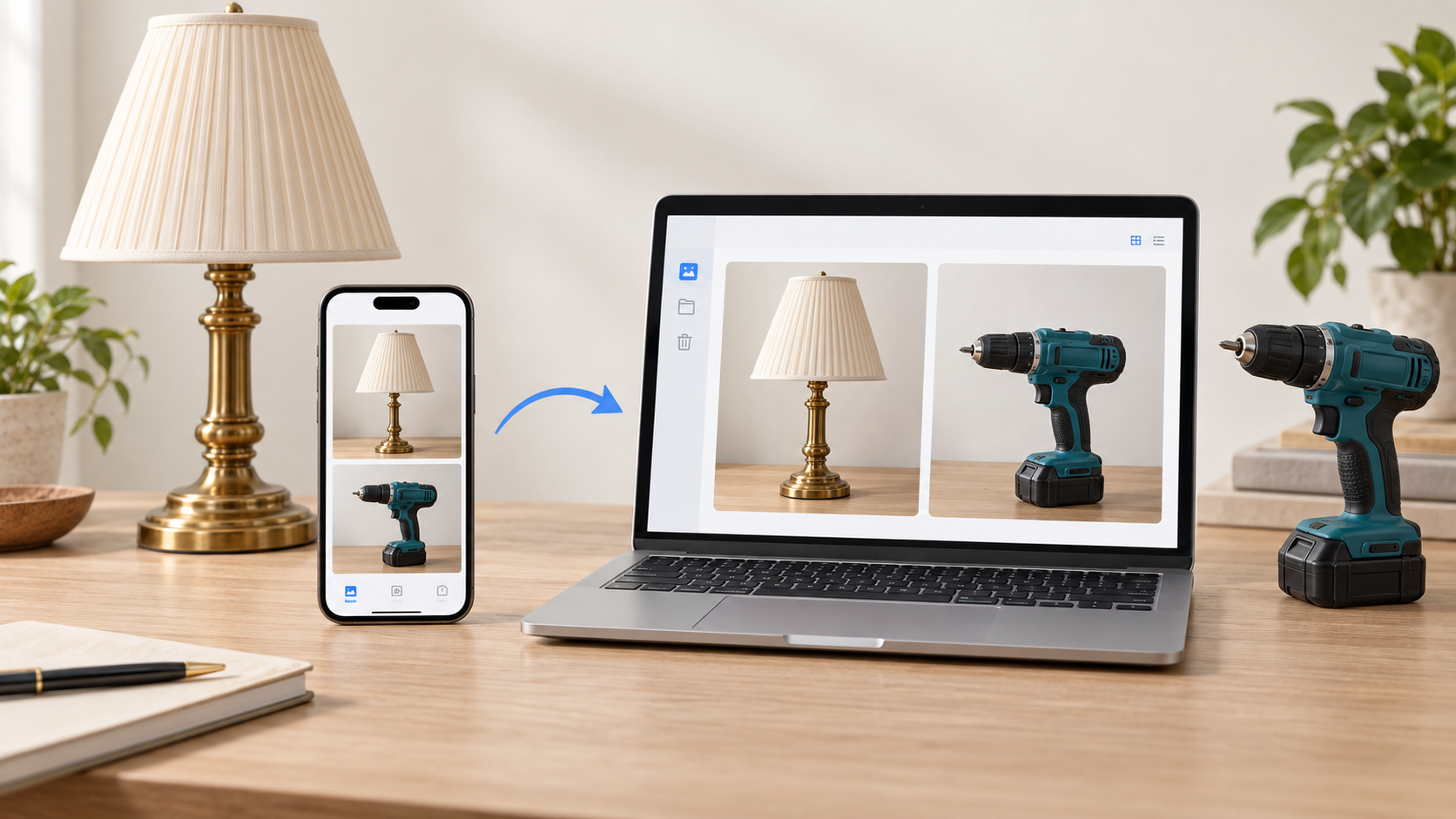
Phone + computer
Learn how mobile photos sync to aListEngine, where to find them in web Imports, and how an uploaded batch becomes draft listings.

Phone + computer
Check that your photos are saved on your phone, understand upload status, and confirm they reached your aListEngine account.

Phone + computer
Find your aListEngine photos by organization, folder, and import, with a simple visual walkthrough.
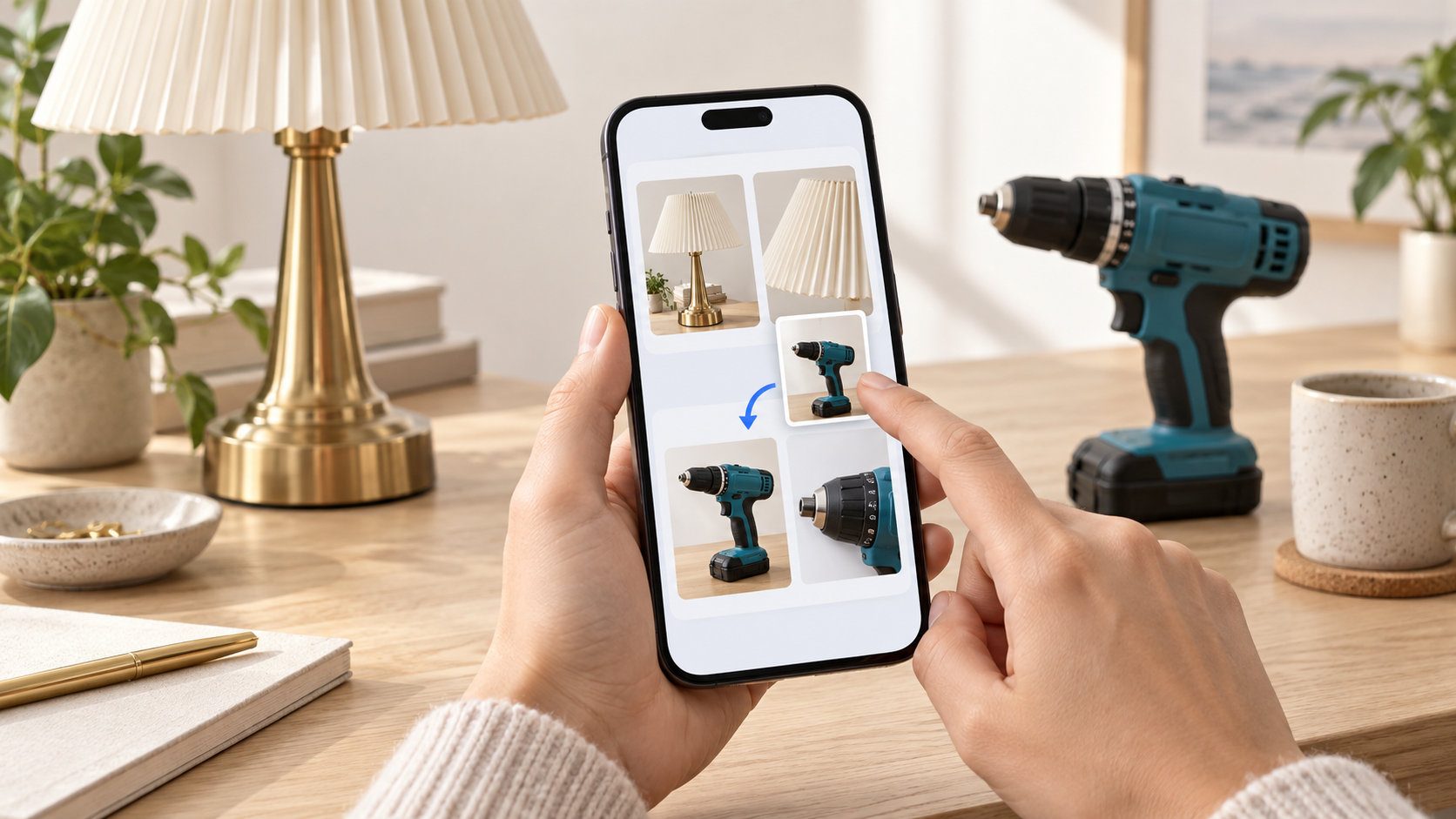
Phone
Review photo order and lot boundaries in aListEngine before creating draft listings from an import.
Phone
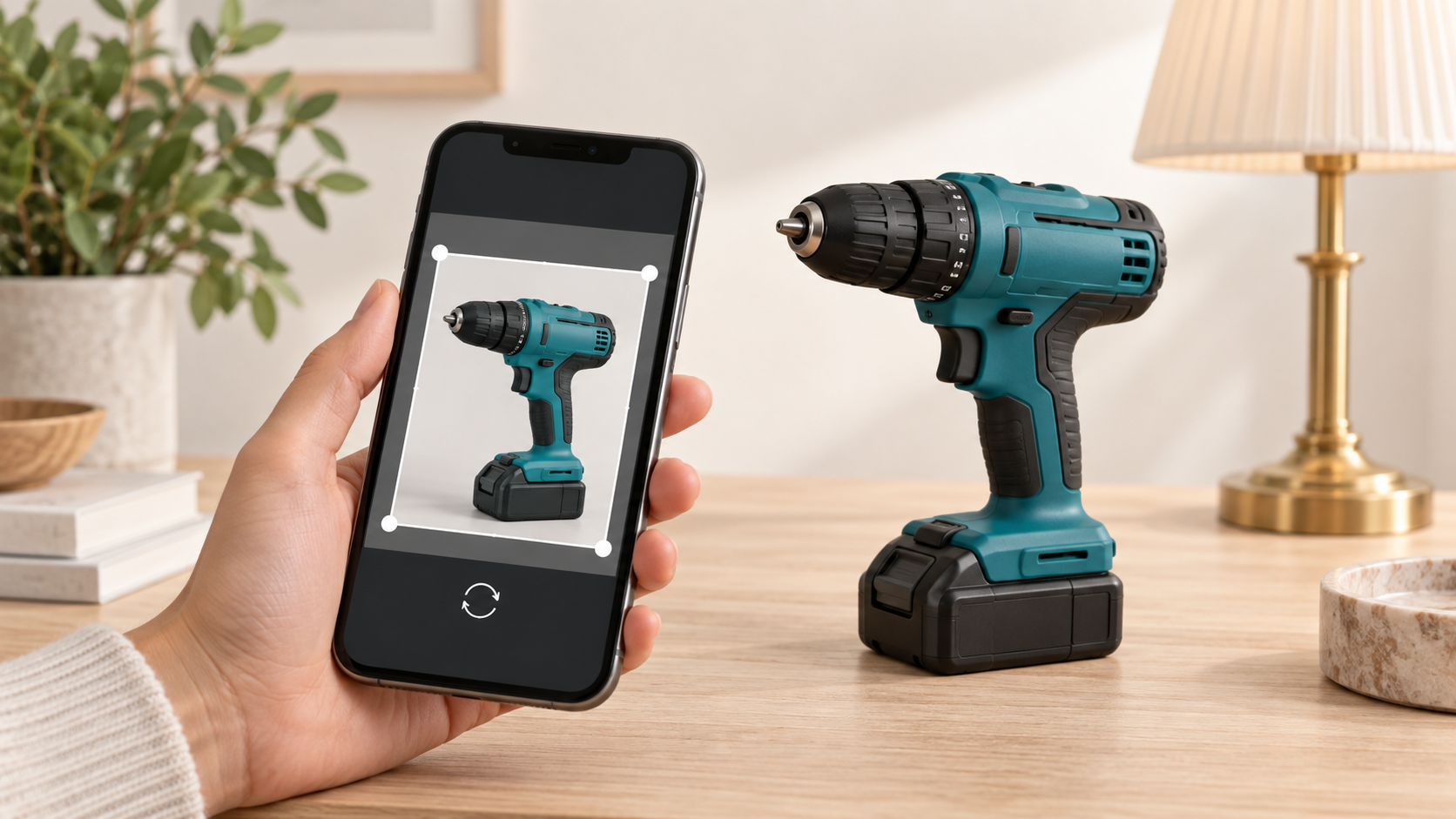
Crop, rotate, and flip a photo in aListEngine, save your changes, and check that the edited image has synced.
Phone
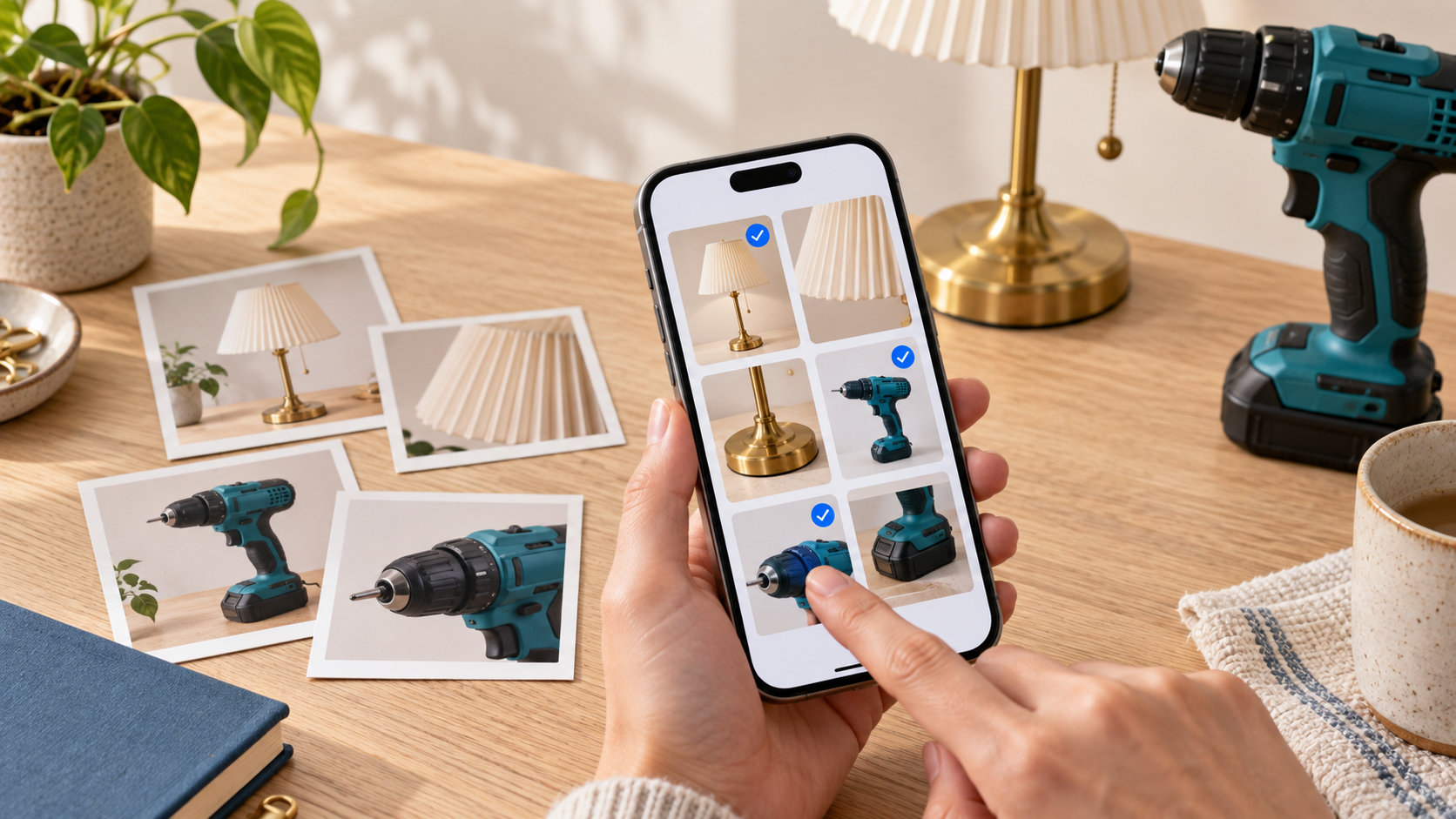
Add existing photos to an aListEngine import or a specific lot, then check their order and grouping.

Phone
Photograph each lot, add useful notes, and check the groups before syncing your work to aListEngine.
Platforms
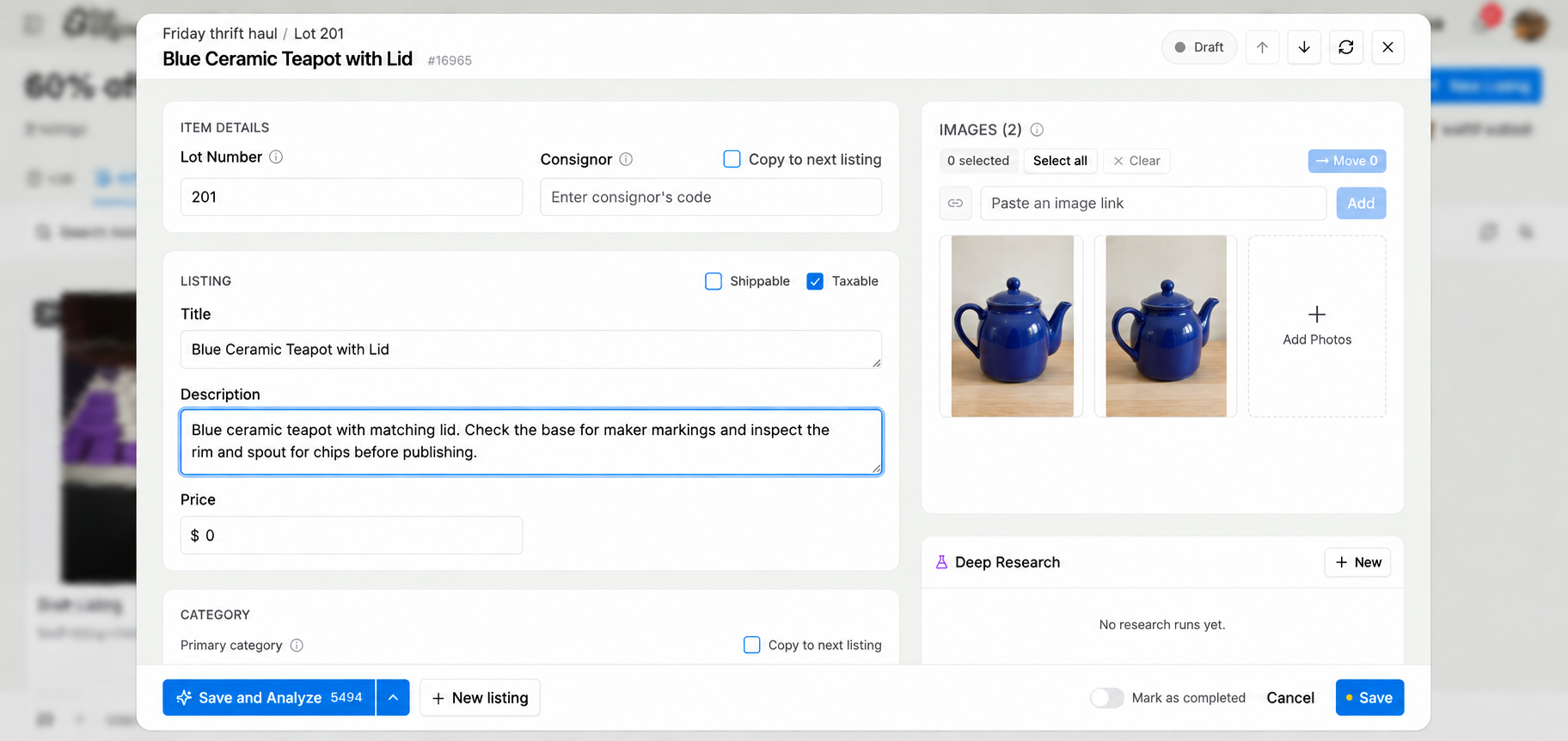
Export a catalog CSV, match the item fields, prepare photo filenames, and review the BidWrangler import.
Platforms
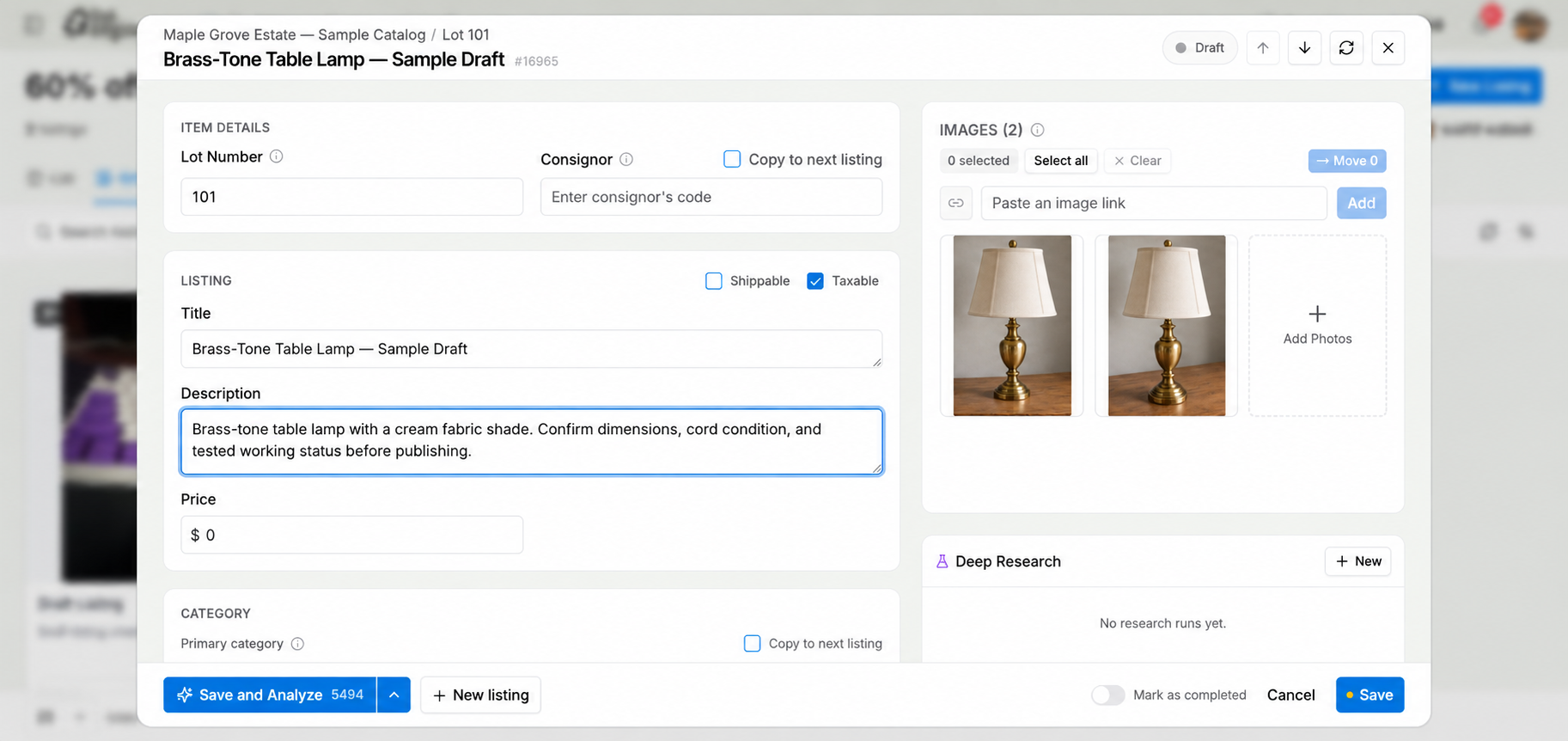
Prepare the K-BID text file, import your lots, match the photos, and check the auction before it goes live.
Platforms
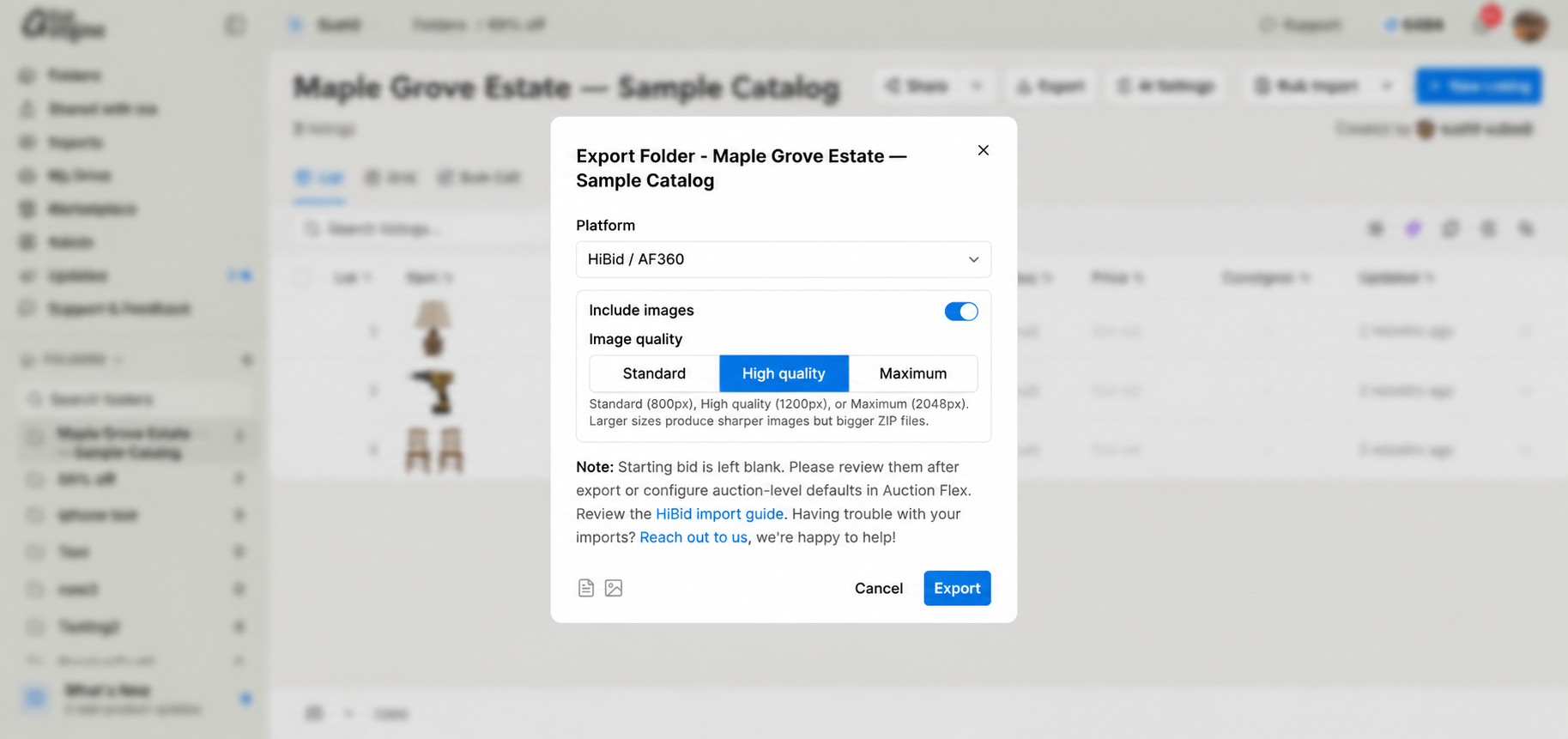
After importing your aListEngine catalog, check the auction setup, upload to HiBid, and review what bidders see.
Guides
Use aListEngine to create an editable auction description from lot photos, review it beside the images, and prepare the lot for export.
Workflows
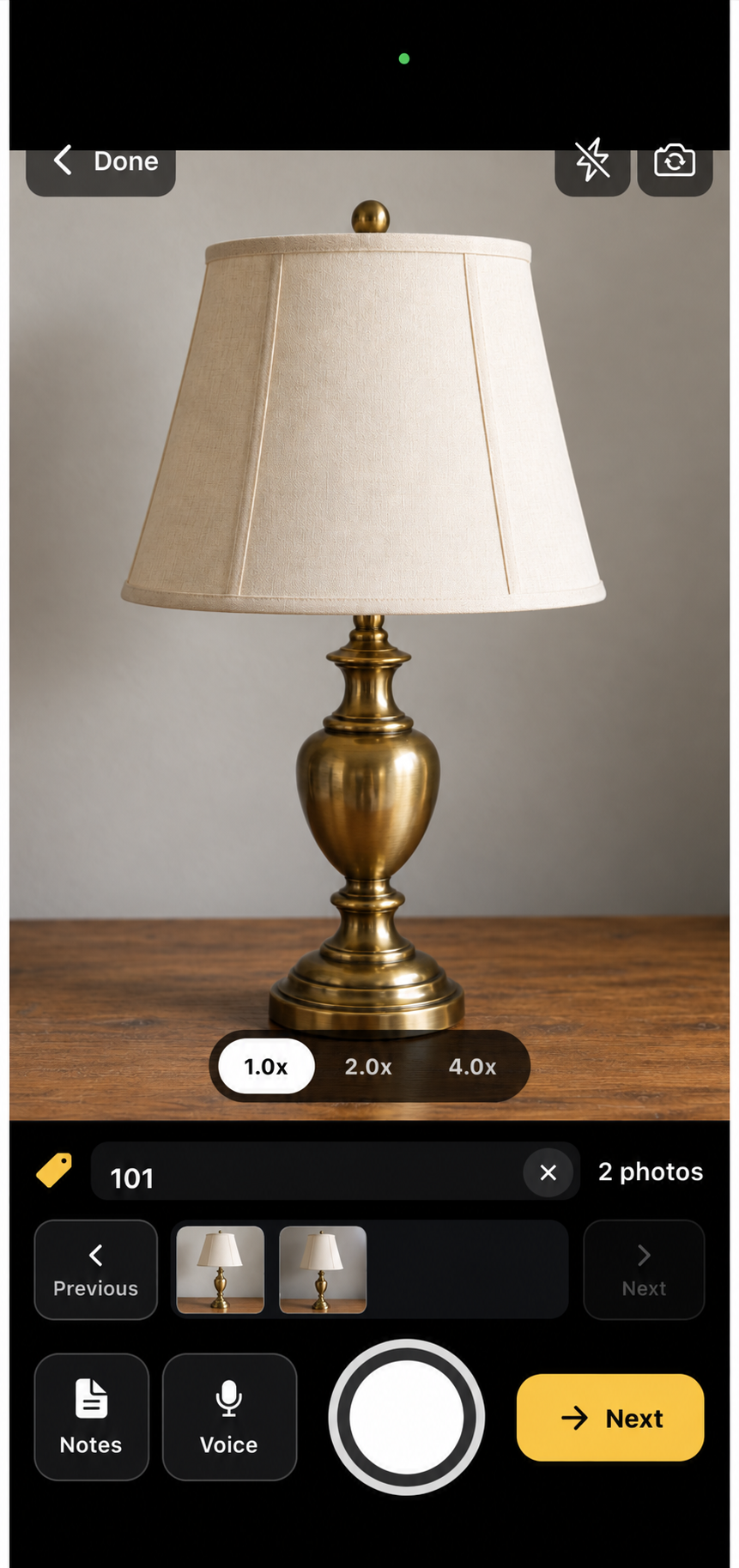
Capture auction photos on your phone, keep them with the right lots, and finish description review and export on a desktop computer.
Platforms
Export aListEngine listings and photos, import them into AuctionFlex 360, and check the completed catalog.
Guides
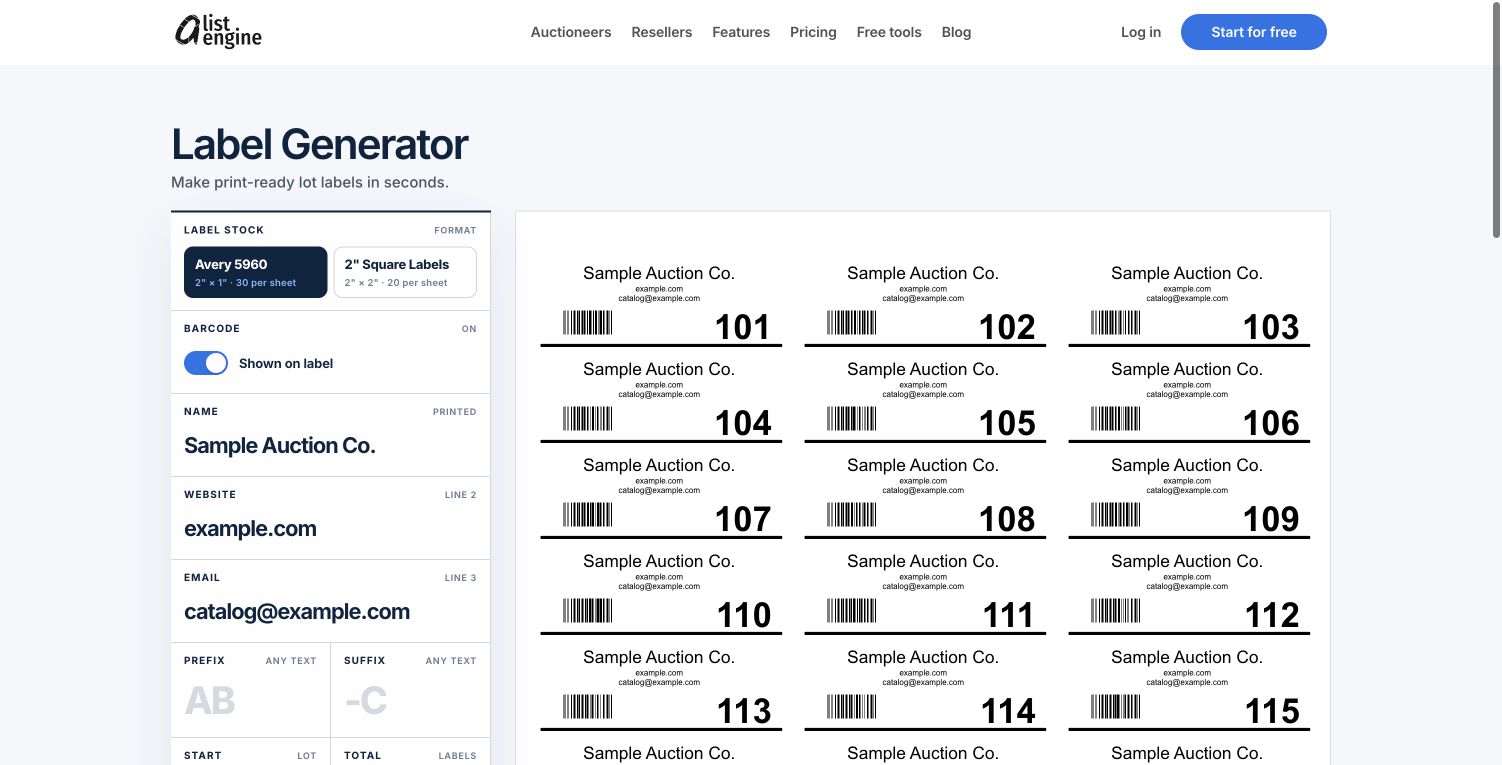
Create auction lot labels with numbers in order, add optional barcodes, and download a PDF for Avery 5960 or 2-inch square label sheets.
Workflows
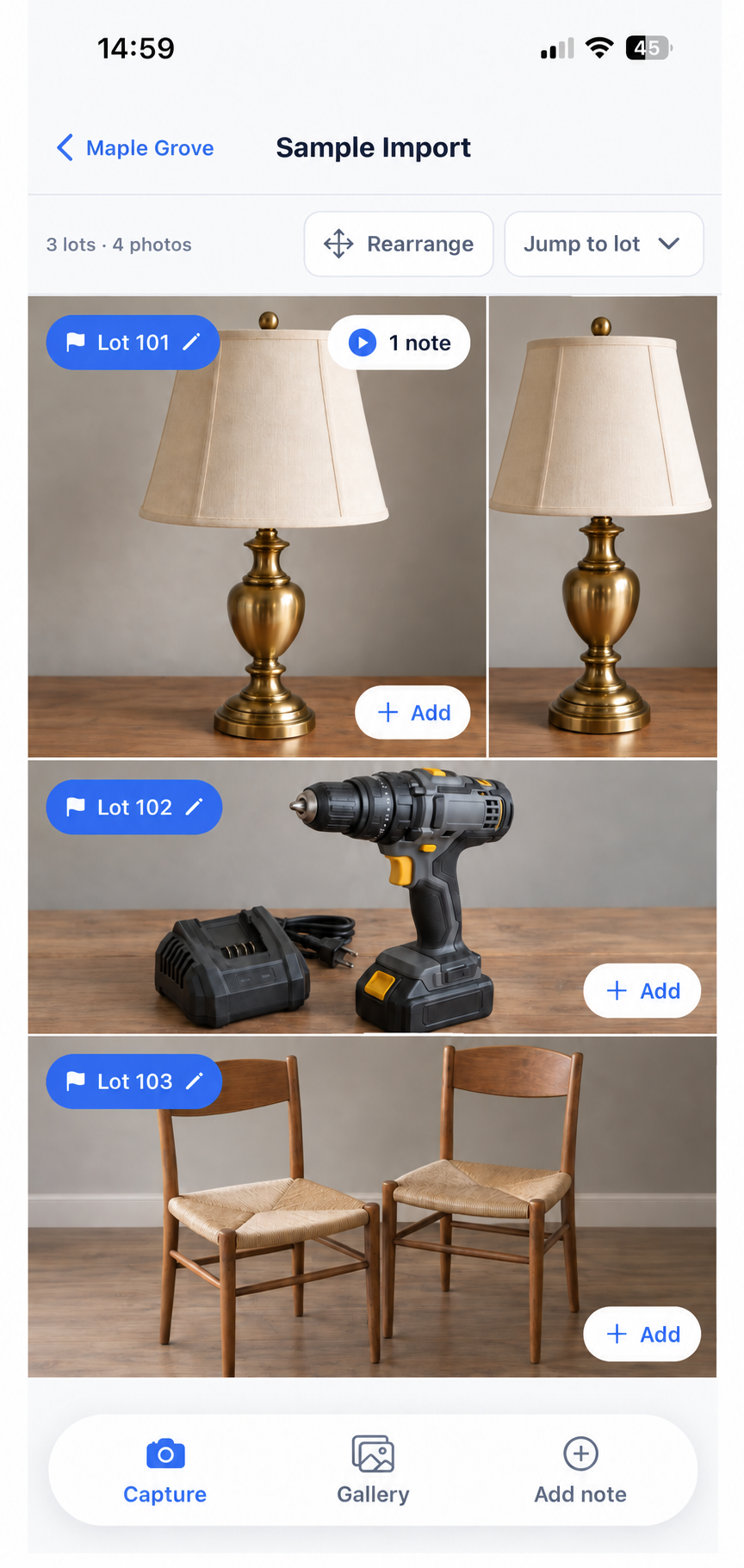
Organize auction photos, mark where each lot begins, and create individual drafts ready for review.

Industry
Help people browsing estate auctions on their phones understand each lot with clear photos, useful titles, and complete condition details.
Product
Photograph the items, group them into lots, review the descriptions, and download the catalog files with aListEngine.
Try fewer words, such as “photos” or “sync”. You can also clear the filters to see every guide.
Show all guidesEmail us for help