
How to Export aListEngine Listings and Photos to K-BID
Prepare the K-BID text file, import your lots, match the photos, and check the auction before it goes live.
In this article
Your descriptions are ready in aListEngine. To move them into K-BID, export the lot details as a text file, upload the lots, then add the numbered photos.
Start with a small batch so you can check the results easily. This guide uses lot 101 for a lamp, 102 for a drill set, and 103 for a pair of chairs.
1. Review the lot details
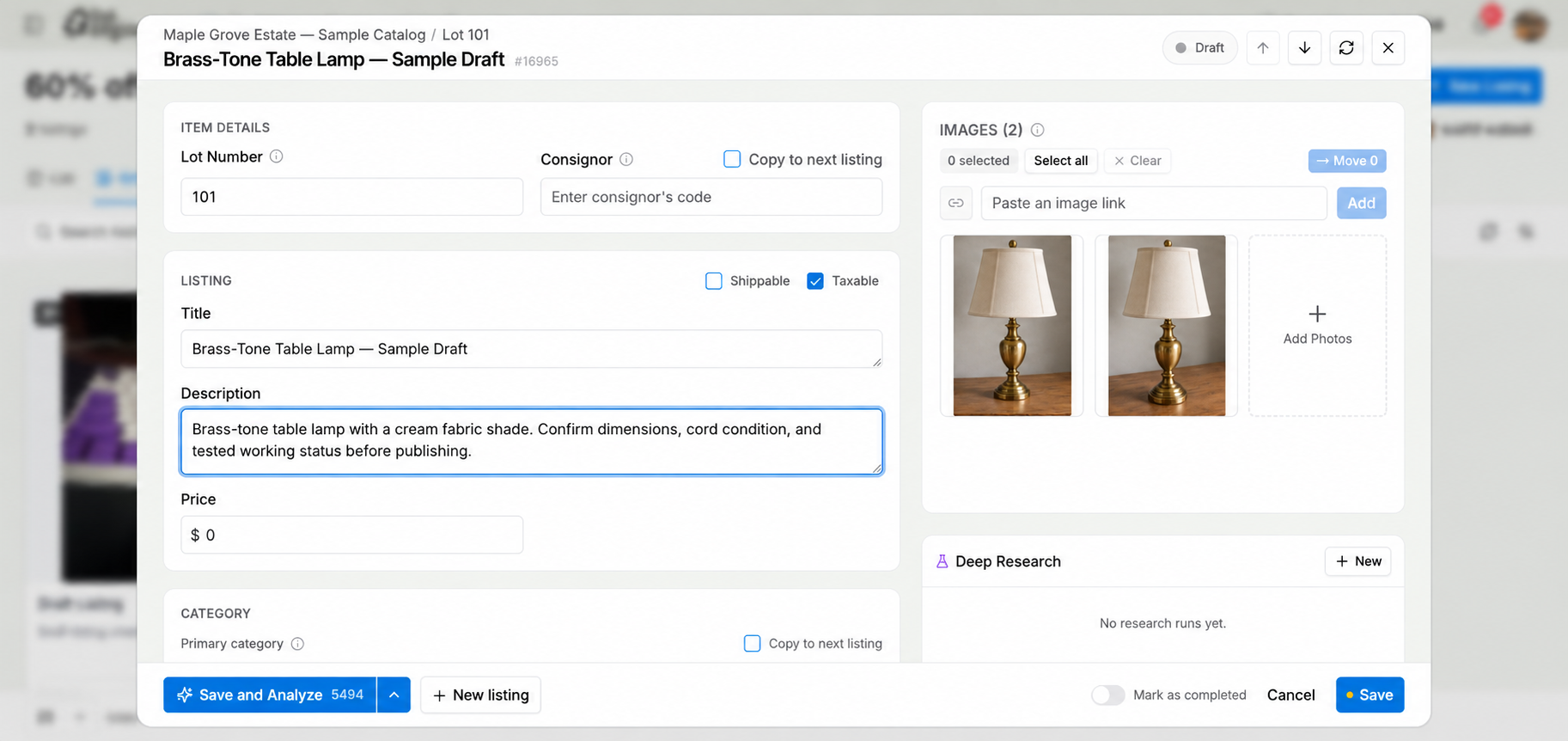
In aListEngine, check each title, description, lot number, and photo group. Describe damage and included pieces before exporting.
Review the item before preparing the K-BID download.
Check the K-BID category, starting price, reserve, taxable setting, and shipping availability. Our export uses the K-BID starting and reserve prices you entered. A suggested selling price is a different value.
K-BID accepts exact category names or its numeric category codes. Its import needs lot numbers, titles, and descriptions. Reimporting a matching lot number overwrites the existing lot data, so check the auction and number range before uploading. See K-BID’s spreadsheet instructions.
2. Download the K-Bid export
- Open the sale folder and choose Export.
- Select K-Bid under Platform.
- Include images and use the dash filename option.
- Review the estimated-price option, then export.
The catalog is a tab-delimited TXT file. Keep that format if you edit the file in a spreadsheet. Simply changing a CSV filename to end in .txt does not convert it.
The estimated-price setting controls whether estimated value wording is added to the description. Leave it off if you do not want that wording visible to buyers.
3. Extract and check the files
Open the downloaded ZIP. On Windows, choose Extract All; on a Mac, double-click it. Keep the TXT file and extracted photos together.
| What to check | Expected result |
|---|---|
| Lot details | Three item rows, with titles and descriptions |
| Lamp photos | 101-1.jpg and 101-2.jpg |
| Drill-set photo | 102-1.jpg |
| Chair-pair photo | 103-1.jpg |
The export leaves the legacy item-class column empty. Keep the column order intact rather than removing columns that look unused.
4. Import the lots in K-BID
Open the auction’s Lots section and choose Upload Lots. Select the TXT file with Choose File, then Upload. Read Import Log → Details for errors and check the results in Lots and Preview. K-BID rejects CSV and Excel files for this upload. Official instructions and template.
Check all three items before moving on. If a row is missing, compare its lot number and description with the file. Correct the cause before repeating an import that could overwrite your edits.
5. Add and check the photos
Use K-BID’s image-upload workflow with the extracted photos. Its filename matching uses names such as 101-1.jpg and 101-2.jpg for two images of lot 101. Use the sequence consistently, including the first image. Follow the filename upload guide.
In Manage Images, check the group for each lot and save any moves or rotations. K-BID recommends creating the lots first when you are not using barcodes. Image management instructions.
6. Review the auction
Open the preview and confirm the lamp has two photos, the drill set has its accessories, and both chairs appear together. Review starting prices, reserves, categories, shipping, and tax settings before making the sale available.
Why did my spreadsheet fail?
Check that you selected the tab-delimited TXT file and preserved the template’s columns.
Why did an existing description change?
A matching lot number can replace that lot’s previous data. Compare the imported file with your intended changes before uploading again.