
Turn auction photos into complete, reviewable listings.
Draft the title, description, condition details, price, and estimate range from lot photos, then let your team review every field before export.

Keep every sale organized and every cataloger aligned.
Catalog organization and control
Keep the auction operation organized in one shared organization, with members, roles, listings, and resources controlled from one settings area.
Team access and permissions
Work from a shared organization and credit pool, or share a sale folder with scoped permissions, an expiry, and a credit budget.
Consistent catalog standards
Set organization- or folder-level instructions for pricing strategy, analysis depth, and listing length so catalogers follow the same format.
How it works
A clear path through the batch.
Bring in a full photo batch, turn each lot into a reviewable draft, and hand the approved catalog off in a platform-ready format.
-
Step 01
Capture the sale
Photograph lots in the field or upload a batch. Group the photos into lots with markers, barcodes, filenames, or manual splits.
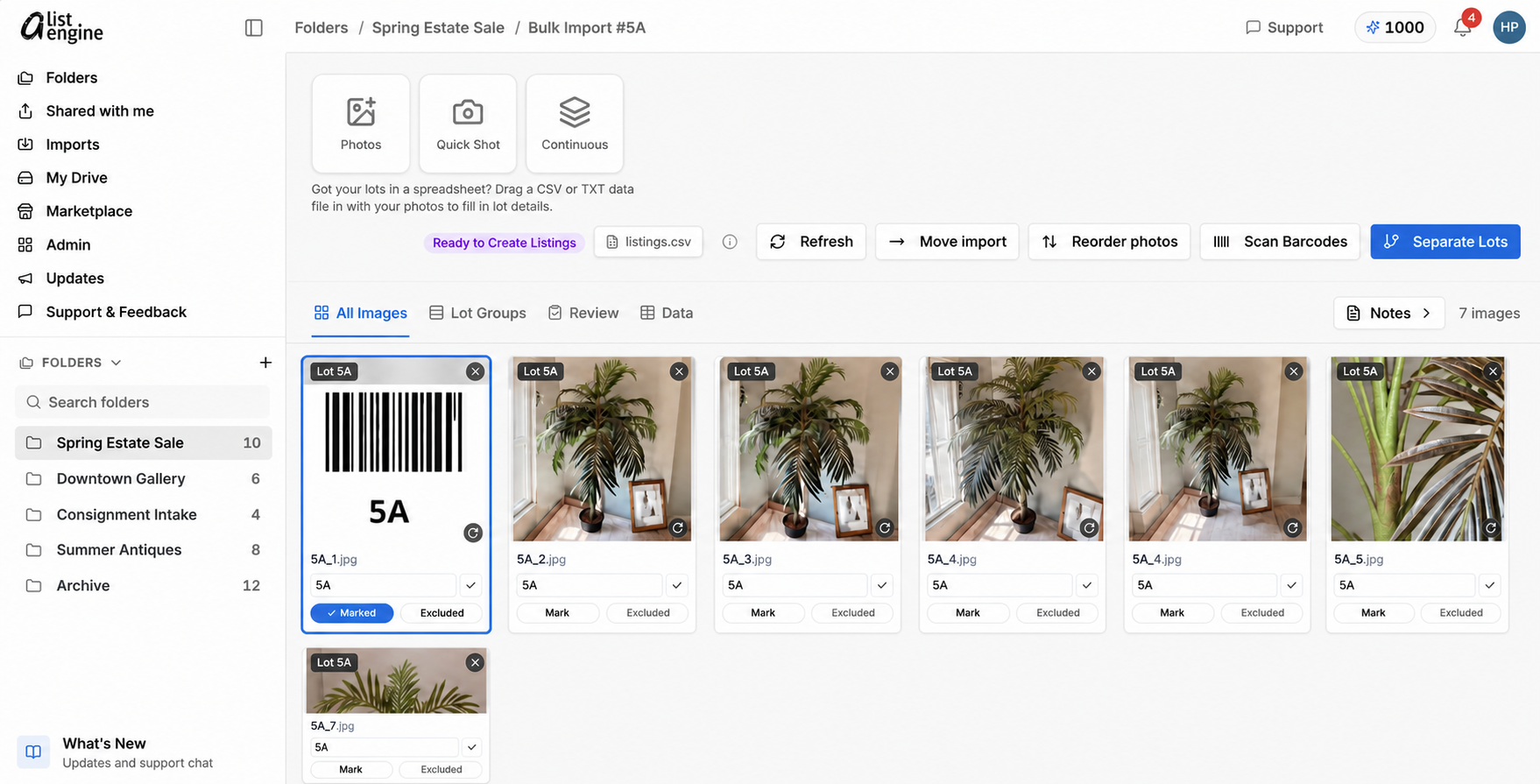
In the fictional Spring Estate Sale, import the palm-tree photo batch, mark the Lot 5A boundary, and separate the group into the draft shown in Step 2. -
Step 02
Draft and review together
Generate listing details with AI, then have catalogers verify identification, condition, pricing guidance, and lot order.
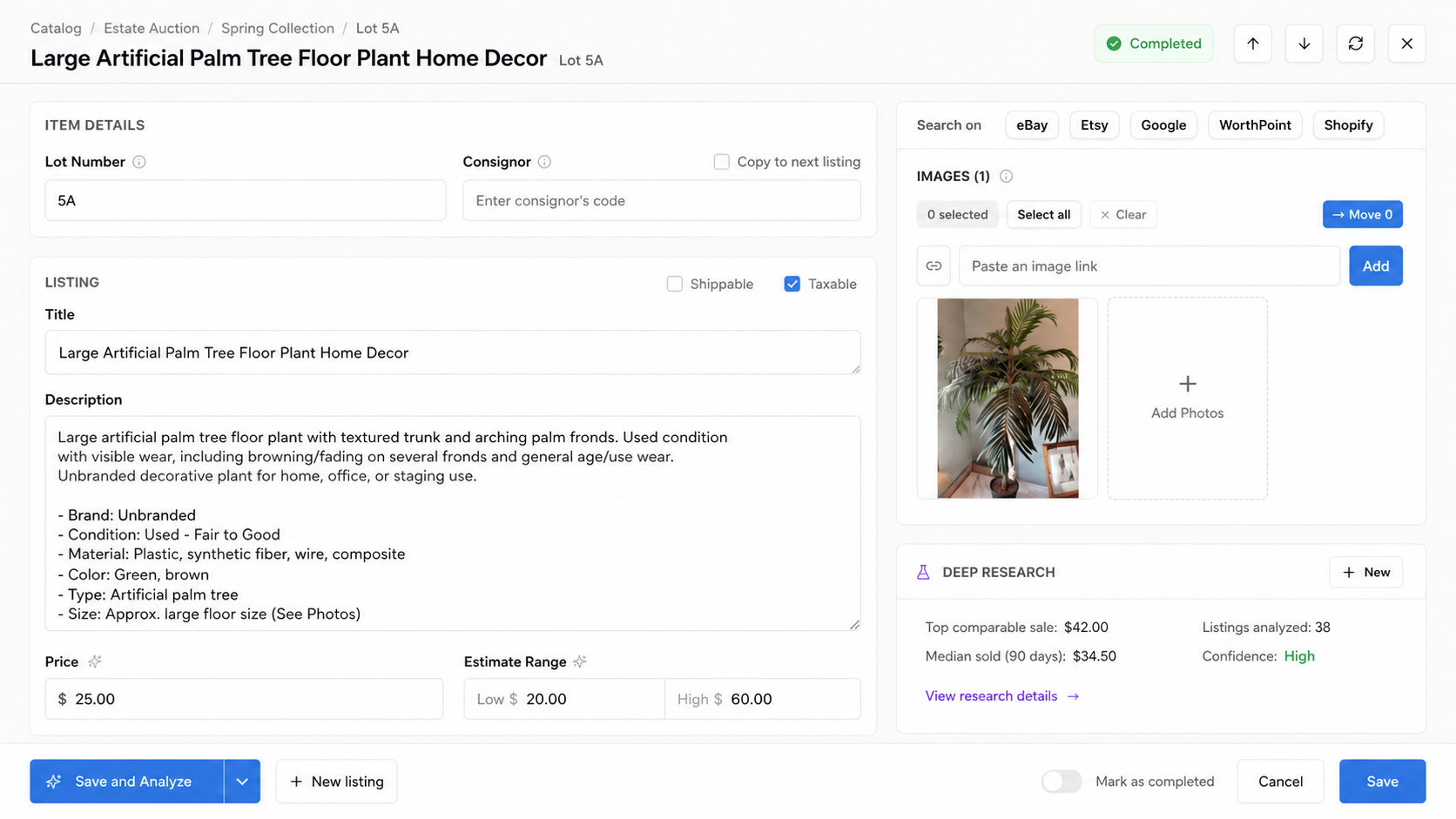
A fictional sample draft with every field visible for cataloger review. -
Step 03
Export for the auction platform
Download the compatible listing file and images, then import them into your auction platform. Nothing publishes without your team.
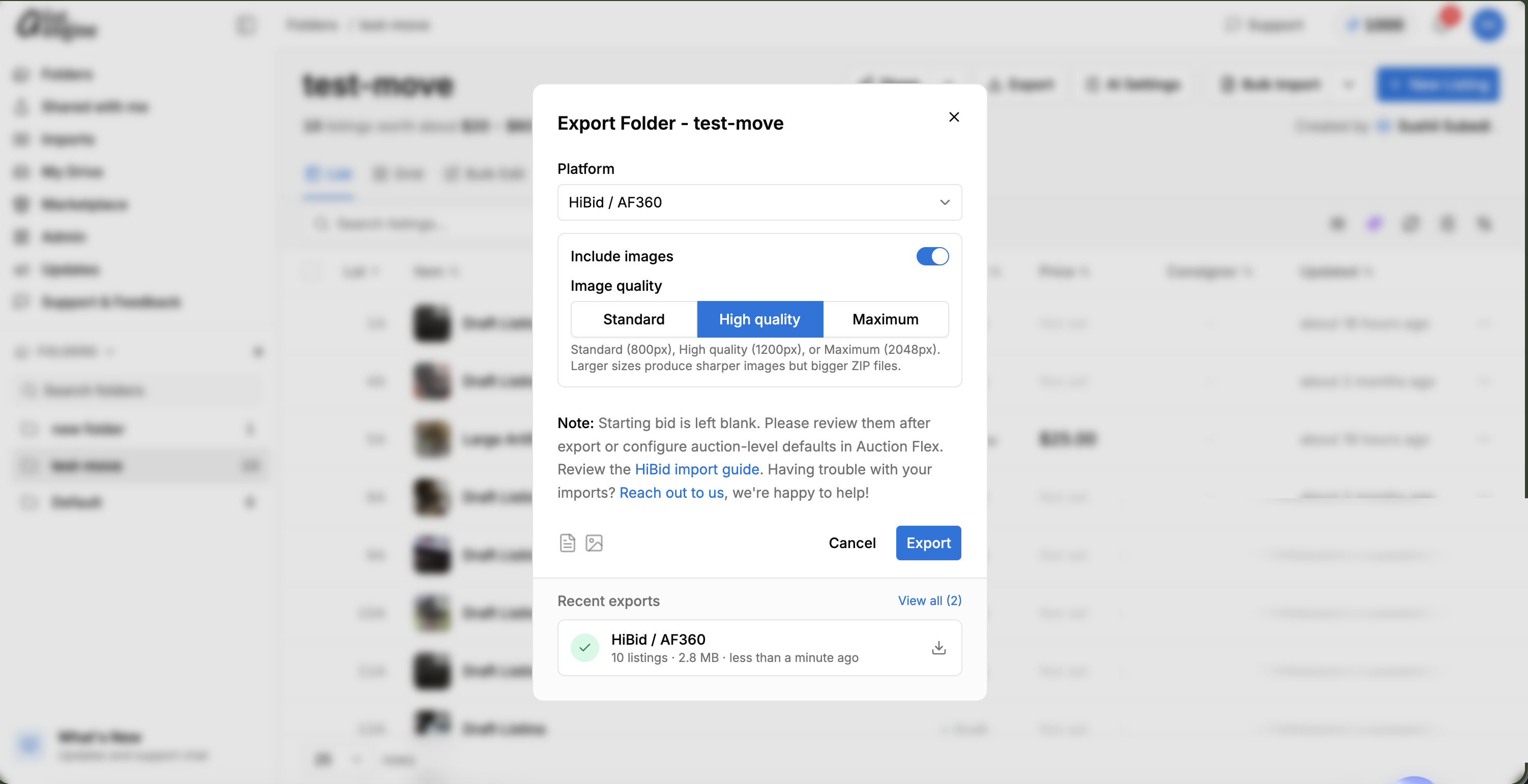
Choose a supported platform and image quality, then download the reviewed catalog package for handoff.


Hand off a catalog in the format your platform expects.
aListEngine creates downloadable listing files and image packages for supported auction platforms. Starting bids, reserves, condition, and other platform-specific fields remain under your control.
See export details








Questions from auctioneers
Can aListEngine handle a full sale at once?
Yes. Bulk import is designed for hundreds of photos. You split the batch into lots, generate drafts, and review the catalog inside one sale folder.
How does smart lot splitting work?
During bulk intake, you can separate lots using lot-marker photos, filenames, barcode scanning, or manual controls. Duplicate detection also helps keep the batch clean.
Can multiple catalogers work on the same sale?
Yes. Team members can work in the same organization and draw from its shared AI-credit pool. Folder-sharing links can also include create, update, delete, export, and bulk-import permissions, plus an expiry and credit budget.
Does aListEngine publish auctions automatically?
No. The AI creates drafts for human review. aListEngine exports compatible files and image packages that your team imports into the destination platform.
Which auction platforms have export formats?
Supported formats include HiBid, AuctionMethod, AuctionFlex 360, K-Bid, Equip-Bid, BidWrangler, LiveAuctioneers, and EstateSales.NET. Platform names indicate compatibility, not endorsement or partnership.
Capture lots from your phone.
Included with every plan.
Photograph items on-site, group each lot as you go, and sync the batch into the same workspace your team reviews.
All download options

Ready to catalog your next sale?
Start with a real batch of photos and see the finished workflow.
Also built for resellers
Create and organize listings from every sourcing batch. For resellers