
How to Choose Automatic or Manual Sync
Choose when aListEngine uploads your mobile work, control automatic cellular uploads, and check pending sync.
In this article
Choose Automatic to let the app start syncing when conditions allow. Choose Manual when you want to start uploads yourself.
1. Open Settings
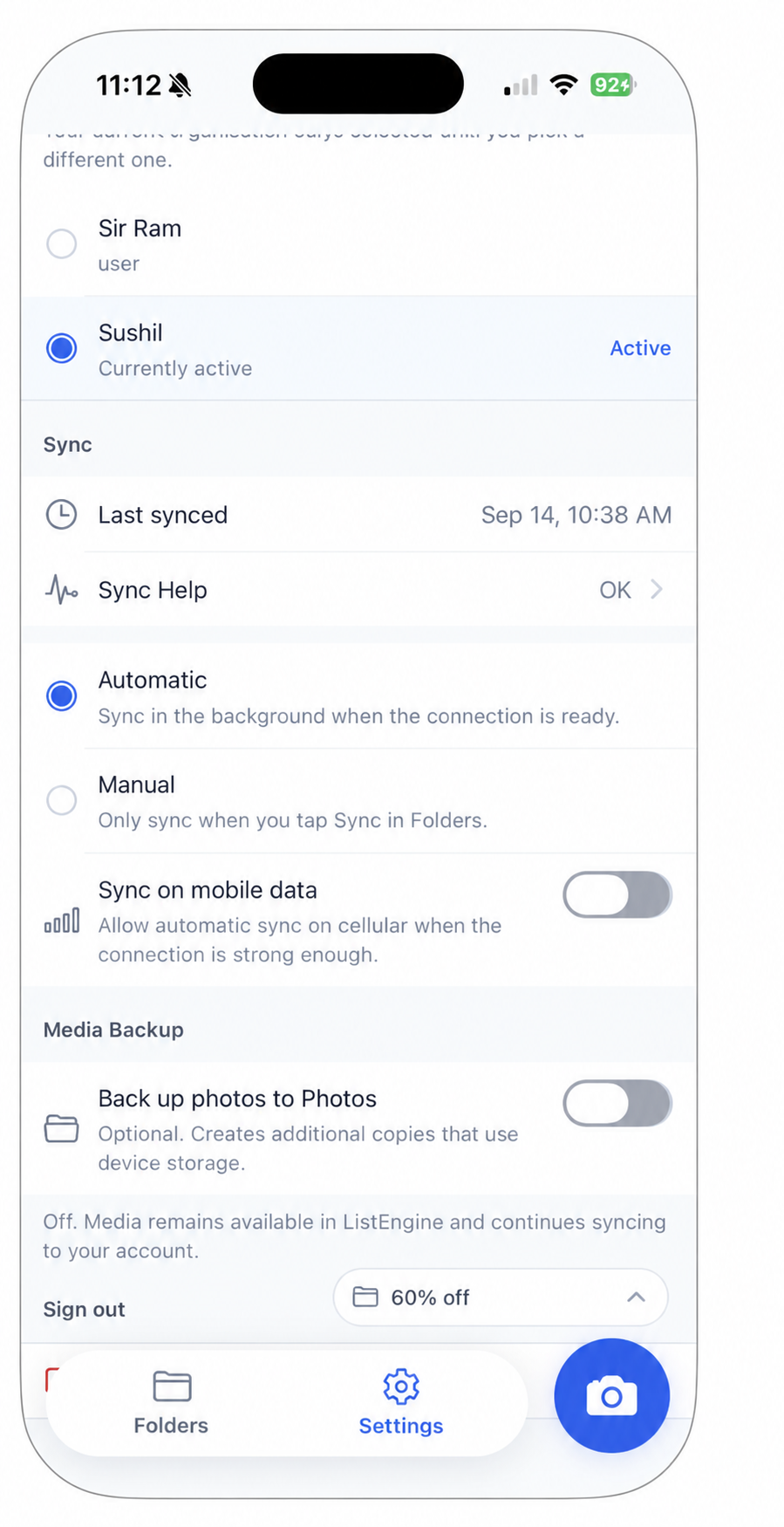
This example has Automatic selected and Sync on mobile data switched off.
2. Choose a sync mode
Select Automatic for routine uploads when the connection and settings allow them.
Select Manual, then tap Sync in Folders when you are ready to upload. Photos saved on the device can wait until you reconnect.
3. Decide whether to use mobile data
Sync on mobile data allows automatic uploads over a sufficiently strong cellular connection. If it is off, use Wi-Fi for automatic uploads.
This setting controls automatic cellular syncing. It is separate from the photo backup setting below it.
4. Check that the batch arrived
Keep the app open on a reliable connection while a large batch finishes. Read the sync status and open Sync Help if work remains pending.
On the web, open the same organization and import. Check the expected photos before someone starts creating listings.
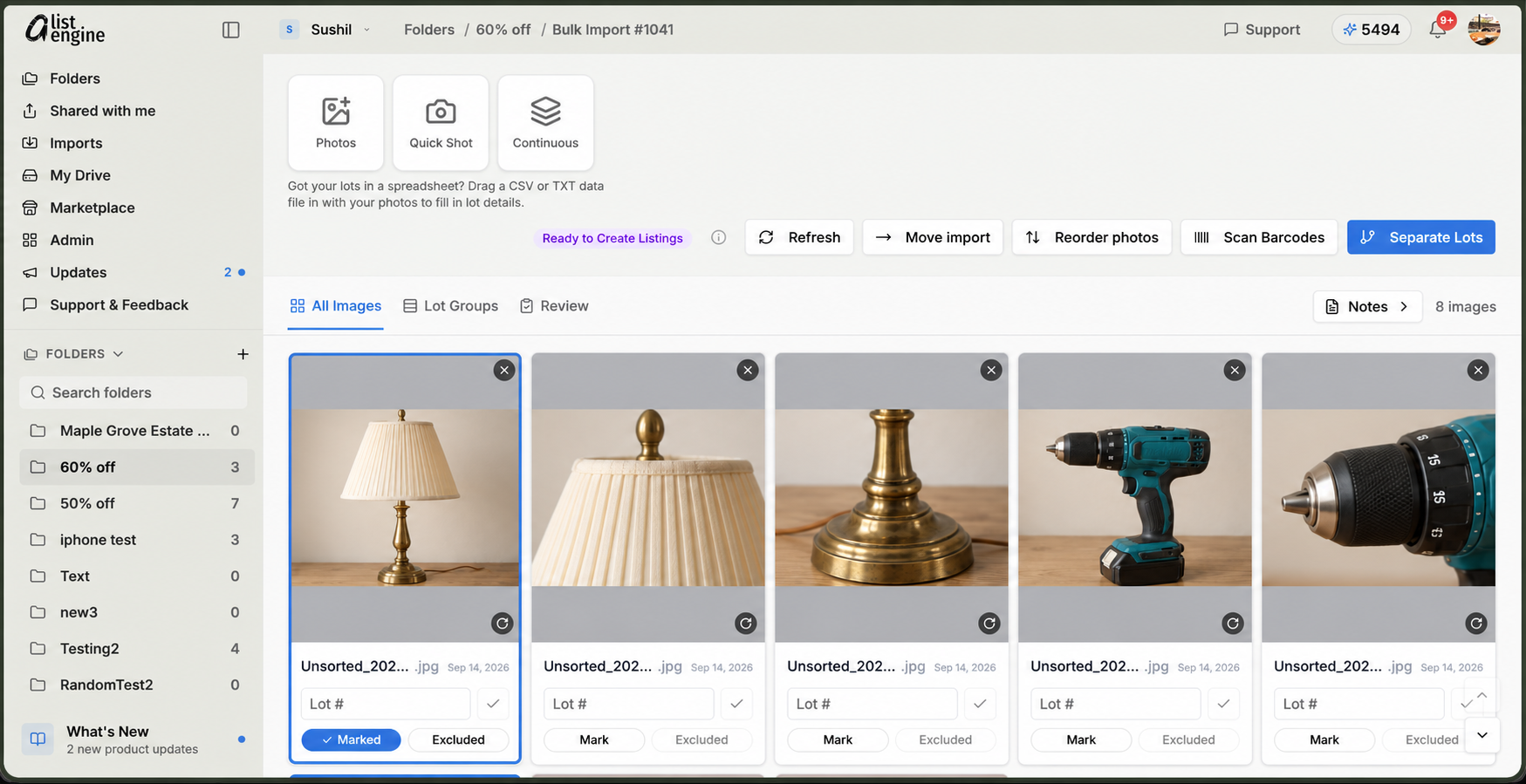
Open your import on the web and compare the photo count and images with your phone. This example uses edited sample product photos.
Good practice: choose Automatic for day-to-day capture, and check your mobile data preference before a large session. Use Manual when you want to choose when the upload starts.
Next: find your synced photos on the web or set up an extra media backup.