
How to Back Up Photos and Audio on Your Phone
Save additional copies of aListEngine photos and audio, choose an Android backup folder, and understand how backup differs from sync.
In this article
Sync sends your work to your aListEngine account. Media Backup saves additional copies on your device. You can use both.
On iPhone
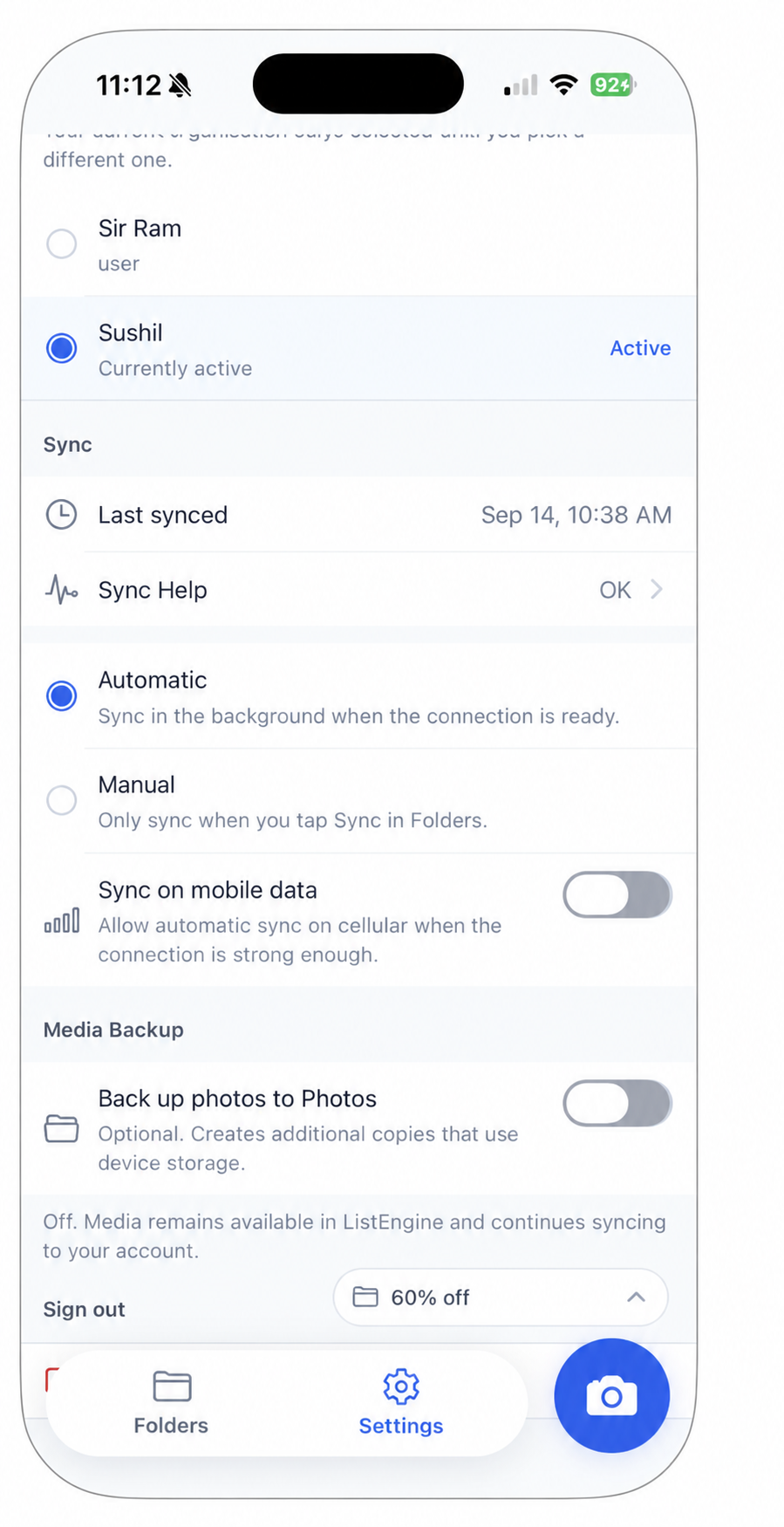
Look under Media Backup for Back up photos to Photos. It is off in this example.
- Open Settings → Media Backup.
- Turn on Back up photos to Photos.
- Grant the required Photos access. The app uses the ListEngine album and may ask you to enable Full Photos Access in iOS Settings.
- Check Photo backup destination after enabling it. Photos go to the ListEngine album; audio notes back up to Files.
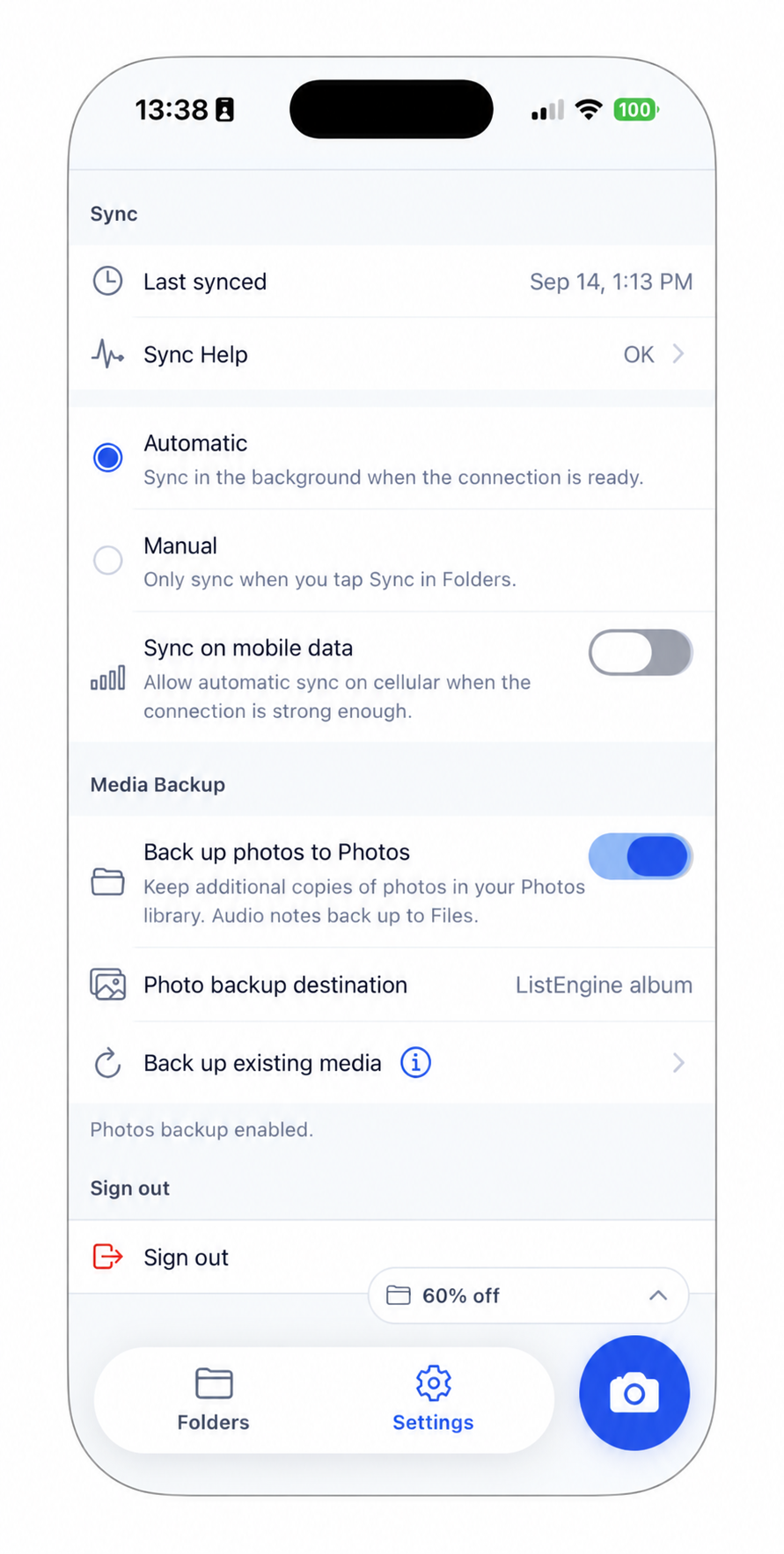
After enabling backup, Photo backup destination shows ListEngine album. Use Back up existing media to request copies of photos and audio already in the app.
On Android
- Open Settings → Media Backup.
- Turn on Back up to folder.
- Use Backup folder to choose the destination and grant access through the system folder picker.
- Check that the destination shows Selected. The app creates its backup folders there for photos and audio.
If the app reports that folder access was lost, choose the backup folder again.
Include media already in the app

Use Back up existing media to request copies of existing media. Wait for the result and check for a reported error before assuming the backup is complete.
Open the destination in Photos or your file browser and check a few files, including an audio note if you use them.
Good practice: allow room for the extra copies. A backup stored on the same phone is not protection against losing the phone, so also confirm your work has synced to your account.
Turning Media Backup off does not turn sync off. Your media remains available in the app and continues syncing according to your sync settings.