
How to Import aListEngine Listings and Photos into AuctionFlex 360
Export aListEngine listings and photos, import them into AuctionFlex 360, and check the completed catalog.
In this article
Your catalog is ready in aListEngine. The next step is to move the listings and photos into AuctionFlex 360 and check the imported catalog.
You will make two uploads: the catalog file first, then the photos. This guide follows three lots from the same sale: a lamp, a drill set, and a pair of chairs.
1. Check your listings in aListEngine
Open the sale folder and review the lot numbers, titles, descriptions, and photos. Make sure the description tells bidders what is included and what condition it is in.
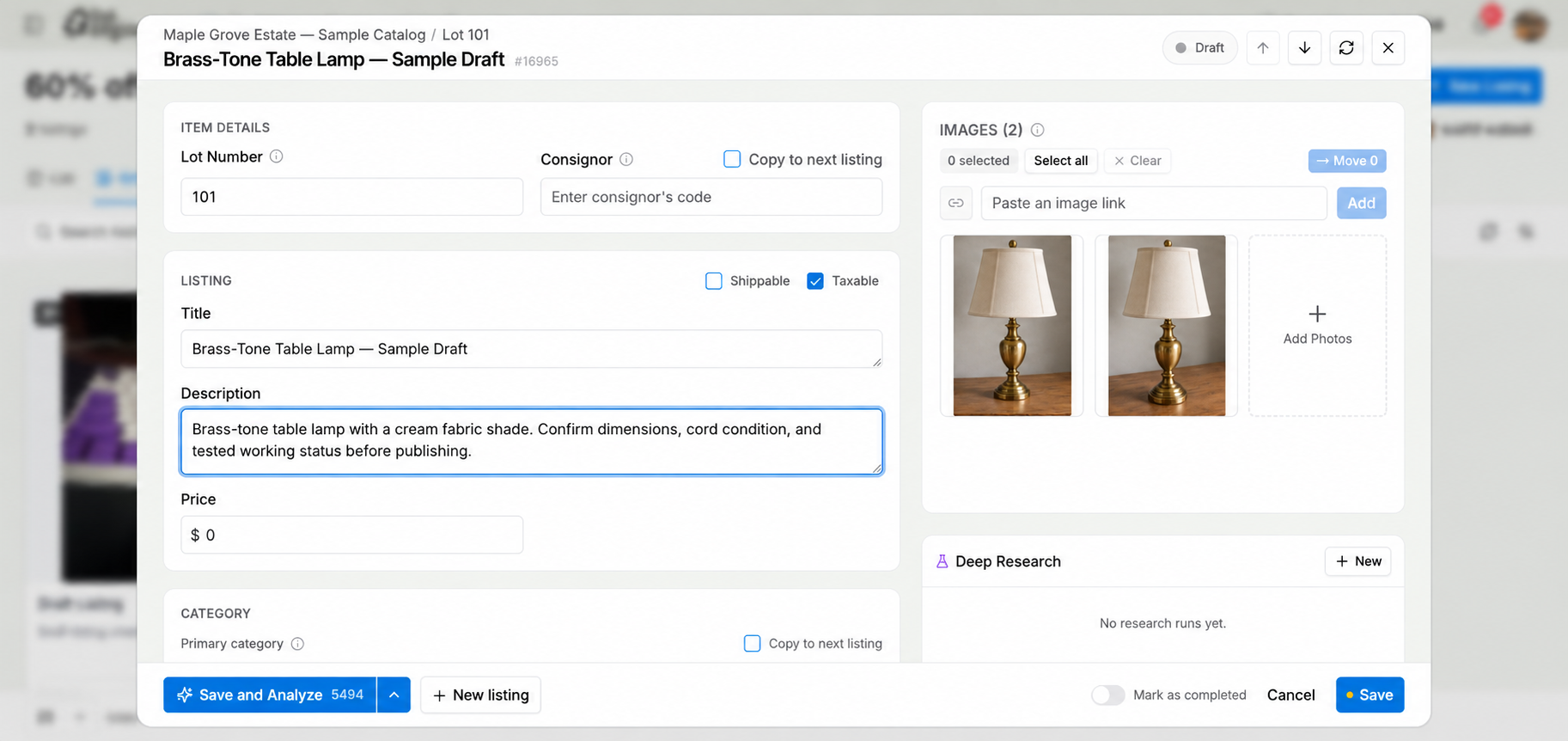
Check the wording beside the photos before exporting.
For the lamp, use a clear title such as “Brass-tone table lamp with cream shade.” Replace editing reminders with the details you checked. If the lamp has not been tested, say so.
Check the consignor code, too. In AuctionFlex 360, find it under Customers → Customer List → Customer Code. Enter that code in aListEngine’s Consignor field so the imported lot can be matched to the correct seller. See the official import guide.
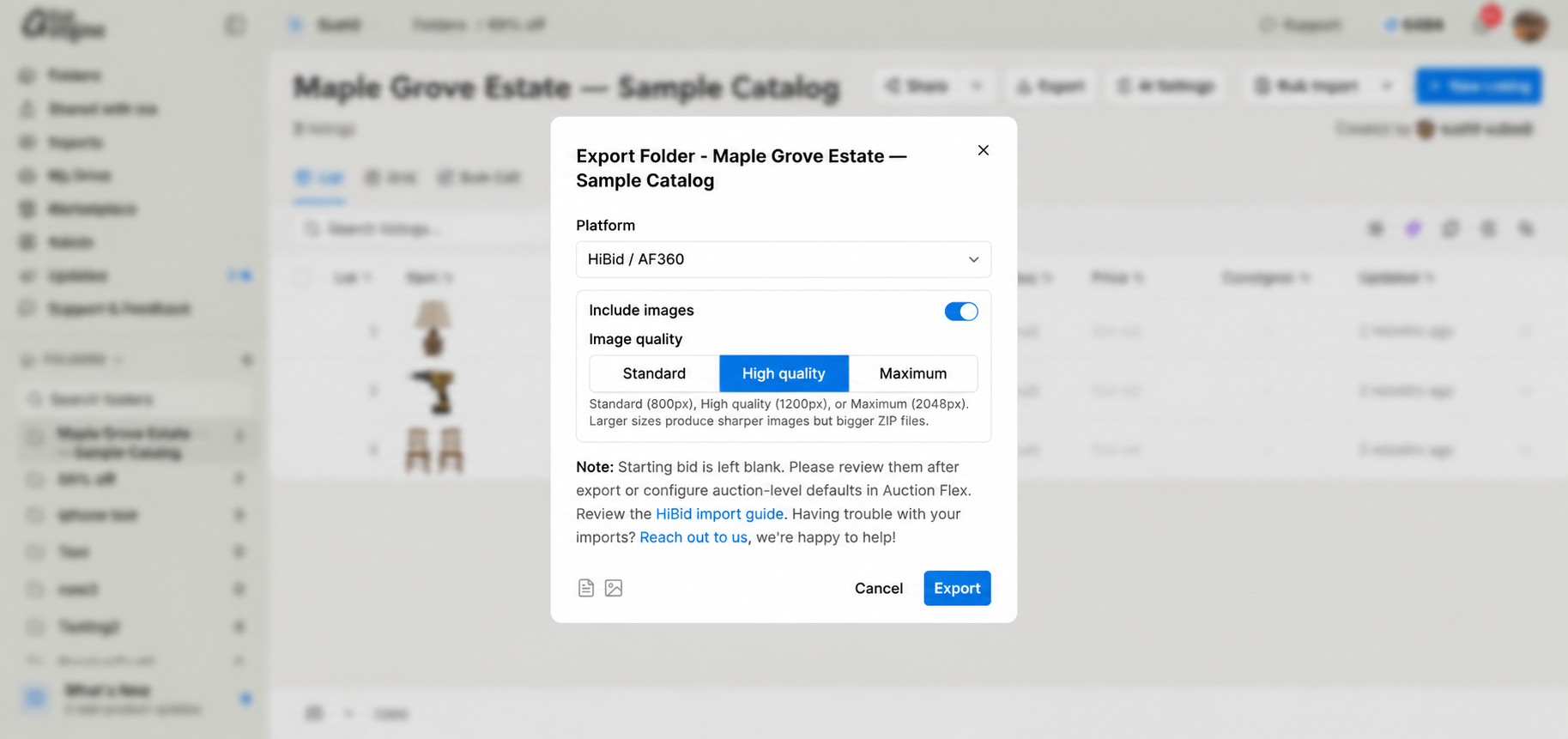
2. Export with HiBid / AF360 selected
In the aListEngine sale folder:
- Choose Export.
- Select HiBid / AF360 under Platform.
- Turn on Include images.
- Choose your image quality, then Export.
Use HiBid / AF360 to prepare the catalog file and numbered photos.
The download includes your listing details in a CSV file, which is a spreadsheet format, and the photos in a ZIP package. Starting bids and reserves are left blank for you to set in AuctionFlex 360.
3. Open the downloaded files
Find the ZIP in your Downloads folder. On Windows, right-click it and choose Extract All. On a Mac, double-click it.
Keep the extracted CSV and photos together. The export contains listings.csv and image files numbered by lot. For this example, you should have:
| Lot | Item | Photo files |
|---|---|---|
| 101 | Table lamp | 101_1.jpg, 101_2.jpg |
| 102 | Drill, battery, and charger | 102_1.jpg |
| 103 | Pair of chairs | 103_1.jpg |
That is three listings and four photos. Additional detail photos will have more files under the same lot number.
4. Upload the catalog into AuctionFlex 360
Open your auction in AuctionFlex 360, then:
- Select Pre Auction.
- Open the Lots tab.
- Click Import Lots at the top right.
Choose Choose File and select listings.csv from the files you extracted. Continue to the field-matching screen described below.
View the import screens in AuctionFlex 360’s official guide.
My screen shows the newer workspace
- Choose Import.
- Select Import to Specific Auction and choose your auction.
- Upload listings.csv, then choose Next.
- Use Assign Field to match the columns described in step 5.
- Review the rows, correct any errors, and continue with Next.
- Choose Go to Auction when the import finishes.
You can save these choices with Choose Layout → Save New Layout. See AuctionFlex 360’s workspace instructions.
5. Match the columns and check the import
Field matching tells AuctionFlex 360 where to put each value in your CSV.
Use the column names from the aListEngine export:
| CSV column | What it contains |
|---|---|
| Lot Number | The number assigned to the lot |
| Lead | Your listing title |
| Description | The reviewed description |
| Consignor | The seller’s customer code |
| Quantity | 1 for each listing |
| Low Estimate / High Estimate | Your estimated selling range |
| Starting Bid / Reserve | Blank values to set before publishing |
Match each column to the corresponding destination field. Lead is the title. Keep estimates separate from opening bids. For a pair of chairs sold together, confirm that Quantity 1 represents the way you intend to sell that lot.
In the classic importer, review the starting row so the header is not imported as a lot. Leave overwrite off unless you intend to replace existing records. Complete the import and read the summary for errors. AuctionFlex’s mass-import instructions show these screens.
Open the imported lamp, drill set, and chair pair. Check that all three are present with the correct titles and full descriptions before uploading their photos.
6. Upload the photos
The lots must exist before their photos are imported. In the classic view, choose Lot Images and select the extracted images. Wait for the upload to show Complete. AuctionFlex 360 accepts filenames using a lot number and underscore, which matches aListEngine’s numbered export. See the official photo-import steps.
Open each lot again. Lot 101 should have both lamp photos, 102 the drill set, and 103 the chair pair. Confirm that the first photo clearly shows everything the buyer receives.
If you changed lot numbers in aListEngine after downloading, create a fresh export before proceeding. Mixing files from different exports makes mistakes harder to spot.
7. Check the imported catalog in AuctionFlex 360
Open your auction in AuctionFlex 360. You should see all three lots in the catalog.
Check the imported details:
- Each intended lot appears once, with the right photos.
- Titles and descriptions are complete.
- Sellers, quantities, estimates, starting bids, and reserves are correct.
- Pickup, shipping, auction dates, and terms are ready.
- The auction currency is correct for your sale.
Your catalog and photos are now ready for your team’s final review in AuctionFlex 360.
If something does not look right
I cannot find the CSV
Extract the ZIP first, then look for listings.csv in the extracted files.
The seller is missing or incorrect
Compare the value in Consignor with the customer code in AuctionFlex 360. Check that the column was assigned to the seller field during import.
A title or description is missing
Recheck the mapping for Lead and Description. Compare the imported text with the CSV before changing or repeating the import.
Photos are missing or attached to another lot
Check that the lot exists, its number matches the filename, and the image upload has finished. Also check the original photo groups in aListEngine.
Try a small catalog first
Take these three lots through export, import, and photo review before moving a full sale. Once the result looks right, repeat the same process for the rest of your catalog.