
How to Edit Photos in the Mobile App
Crop, rotate, and flip a photo in aListEngine, save your changes, and check that the edited image has synced.
In this article
Tidy up a photo before creating listings. The mobile photo editor lets you adjust the framing and orientation directly from an import.
1. Open Edit photo
Long press the photo you want to change, then tap Edit photo in Photo options. You can open it from a lot’s first photo or another photo inside the lot.
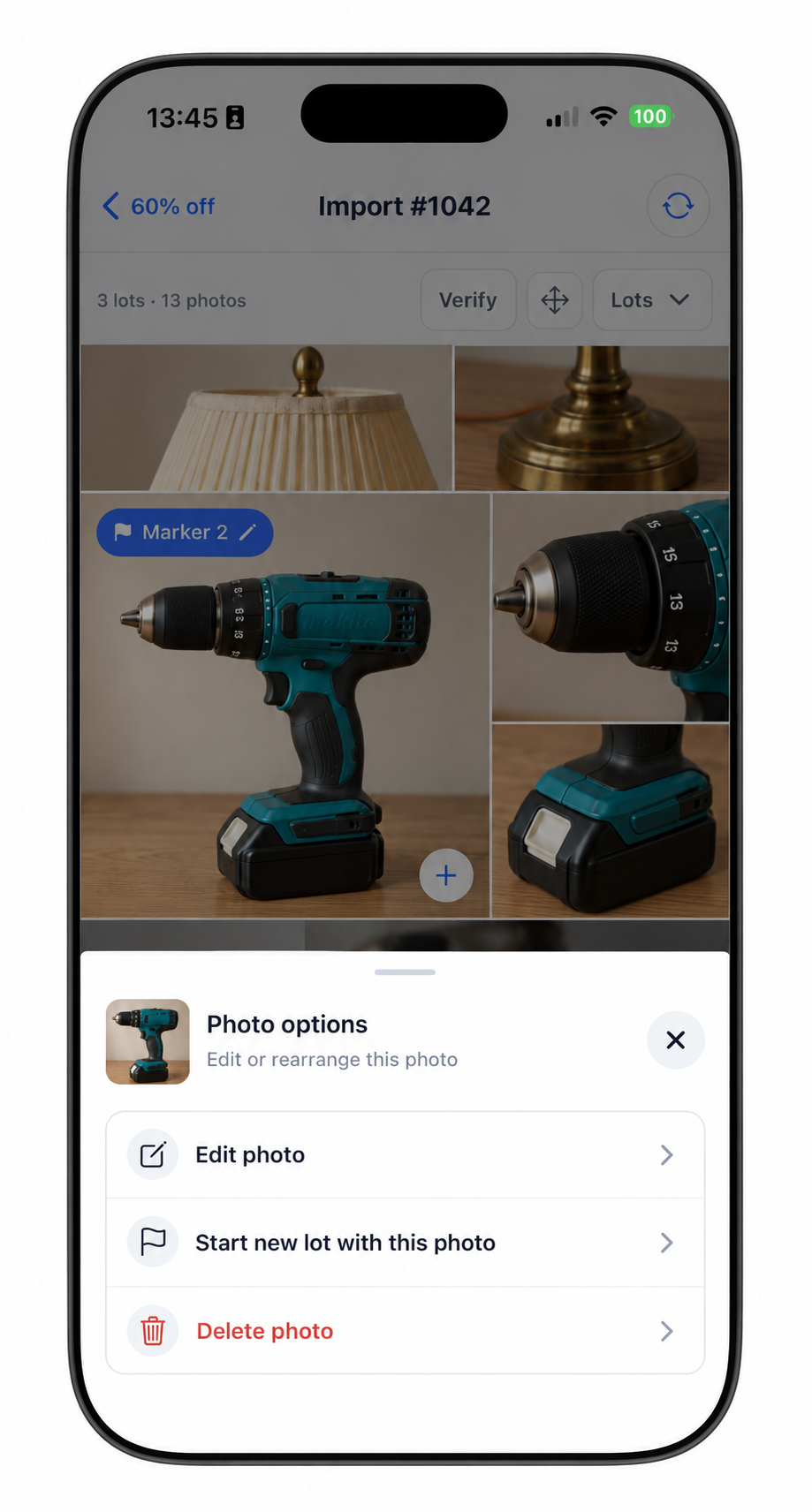
Choose Edit photo to change the image.
2. Adjust the shot
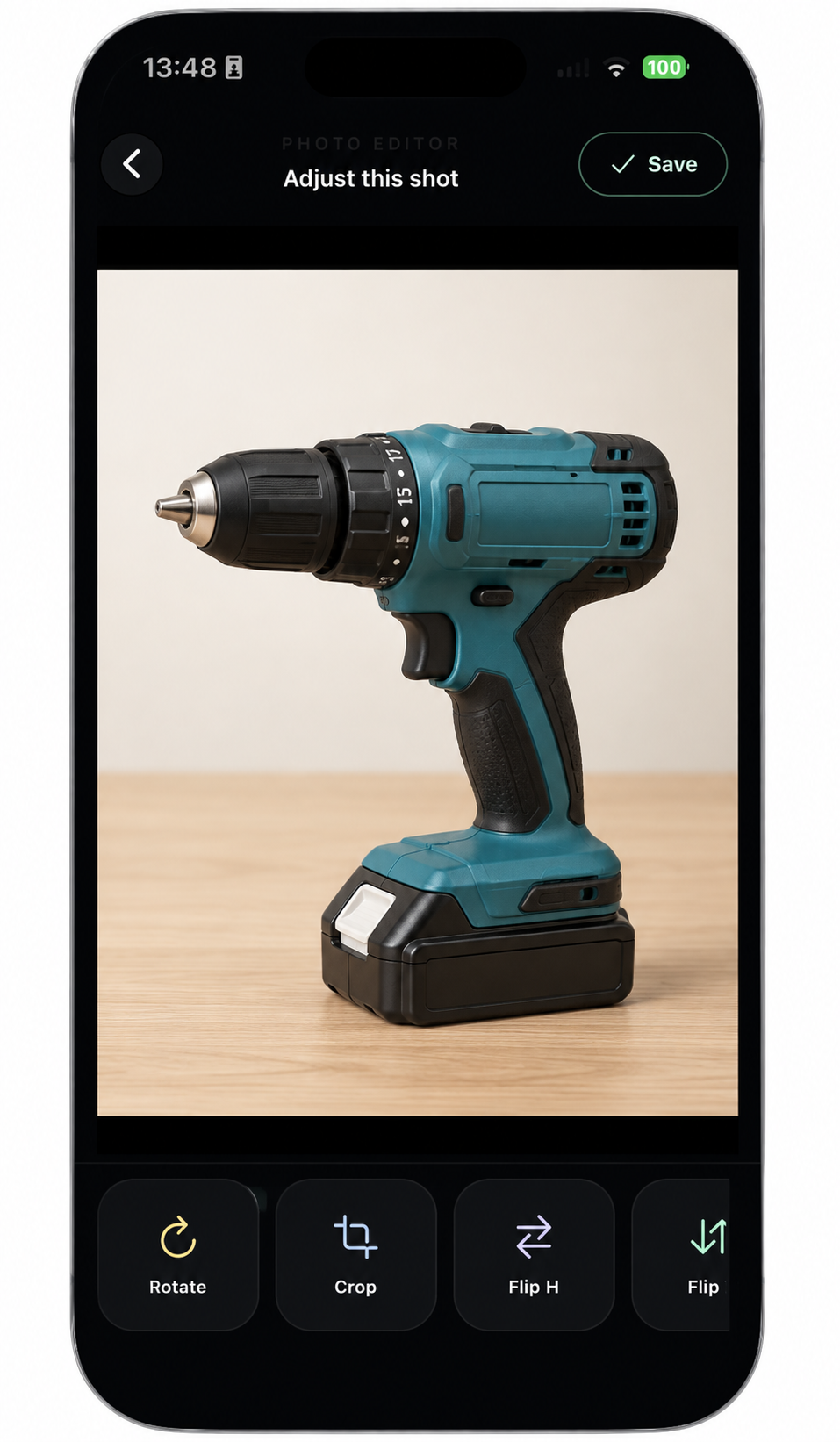
The editing tools sit below the photo. Swipe across the toolbar to see more tools.
- Rotate: turn the photo 90 degrees with each tap.
- Crop: adjust the frame, then tap Done in the crop screen.
- Flip H / Flip V: mirror the image horizontally or vertically when needed.
3. Review the framing
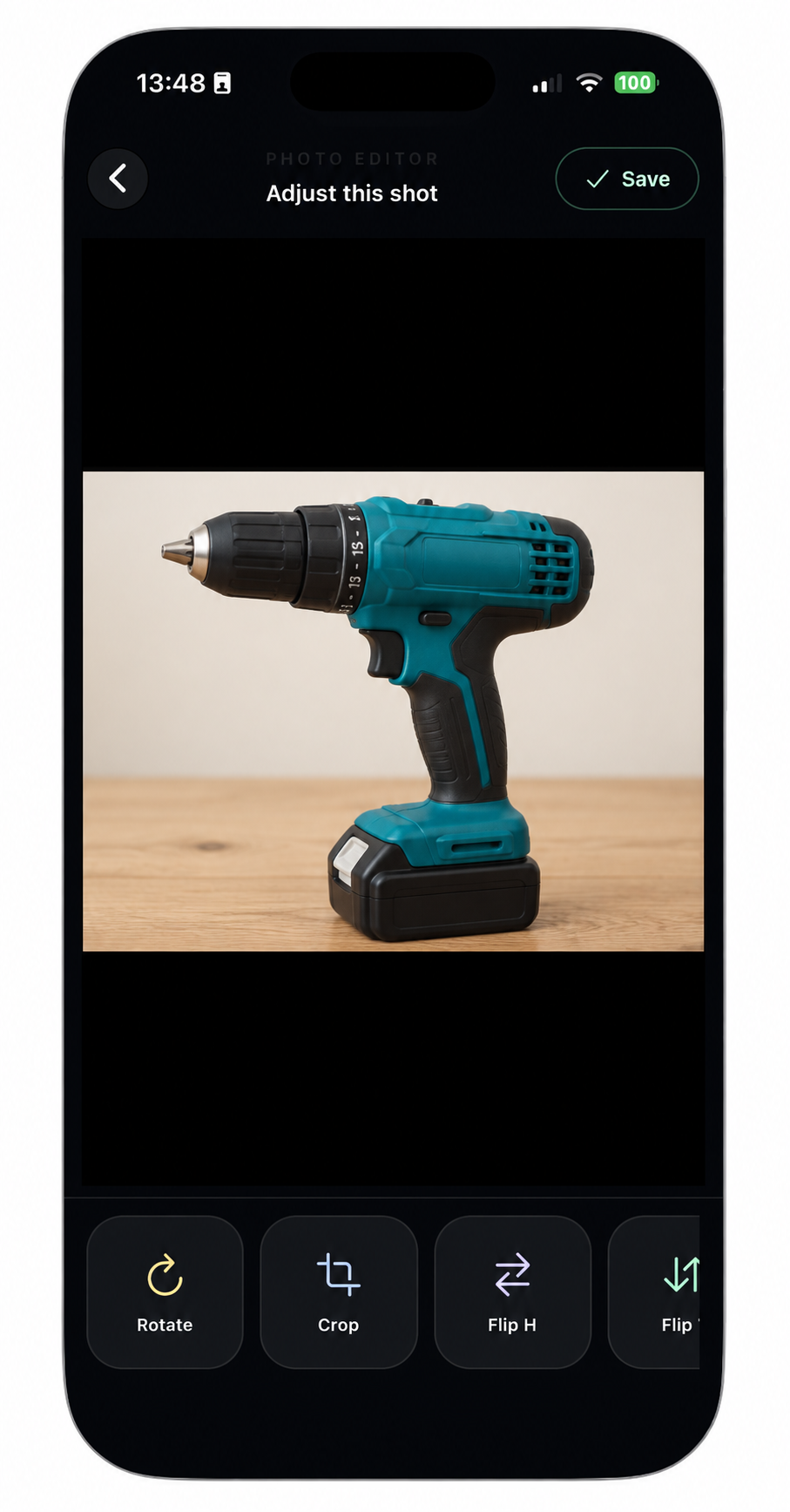
Example of a landscape preview. Check the whole item before tapping Save.
Keep useful details visible, including labels, edges, and any wear. For an overall shot, leave a little space around the item. Use a separate close-up for details.
4. Save the change
Tap Save. If the photo has already been uploaded, the app asks Replace uploaded image?
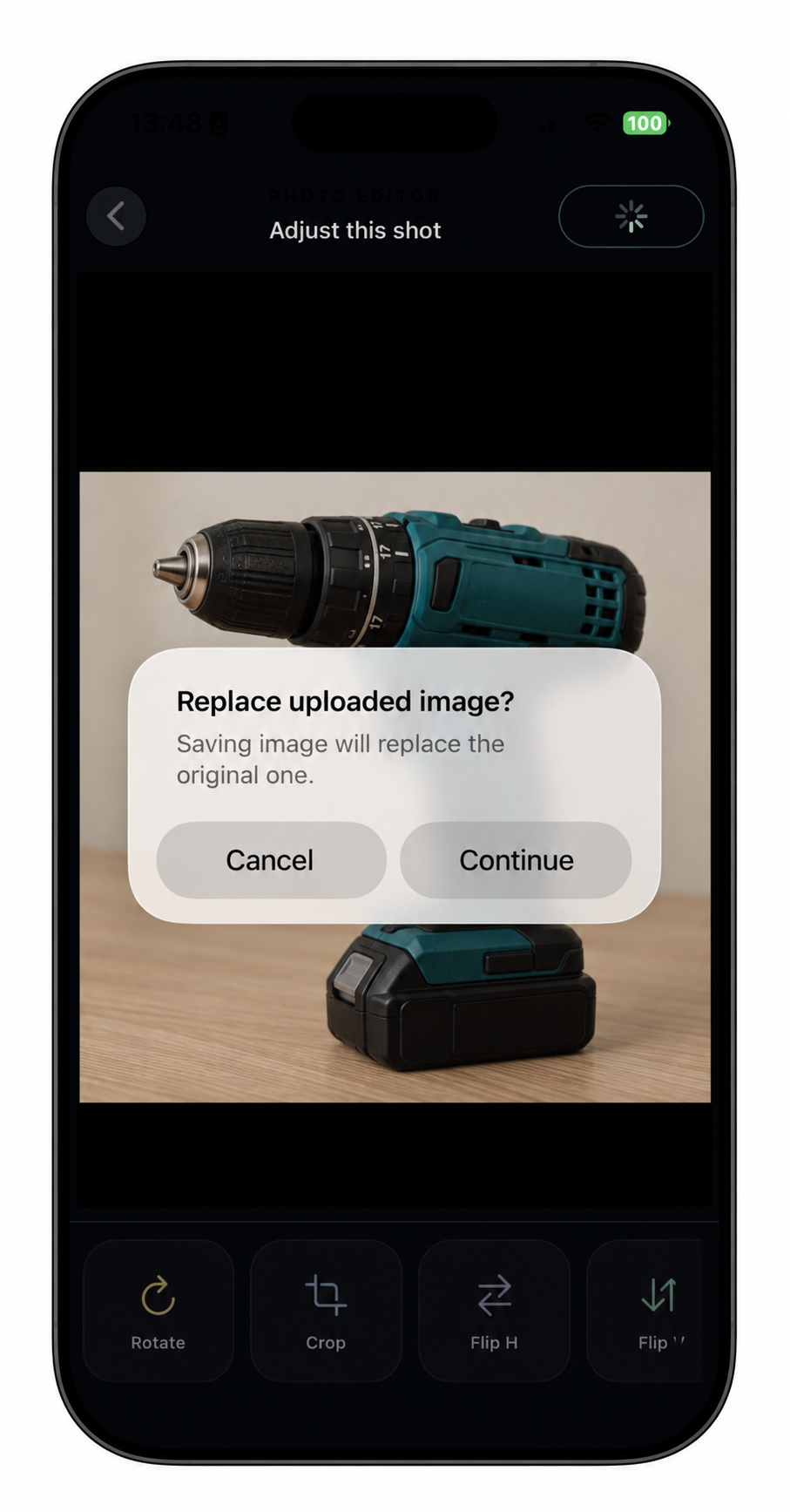
Choose Continue to save the replacement, or Cancel to stop this save.
The edited image replaces the uploaded original when the change syncs. Keep a separate original copy if you need it later.
5. Check the upload
After saving, you return to the import. An edited photo may show Uploading, with Syncing changes… and a pending count above the grid.
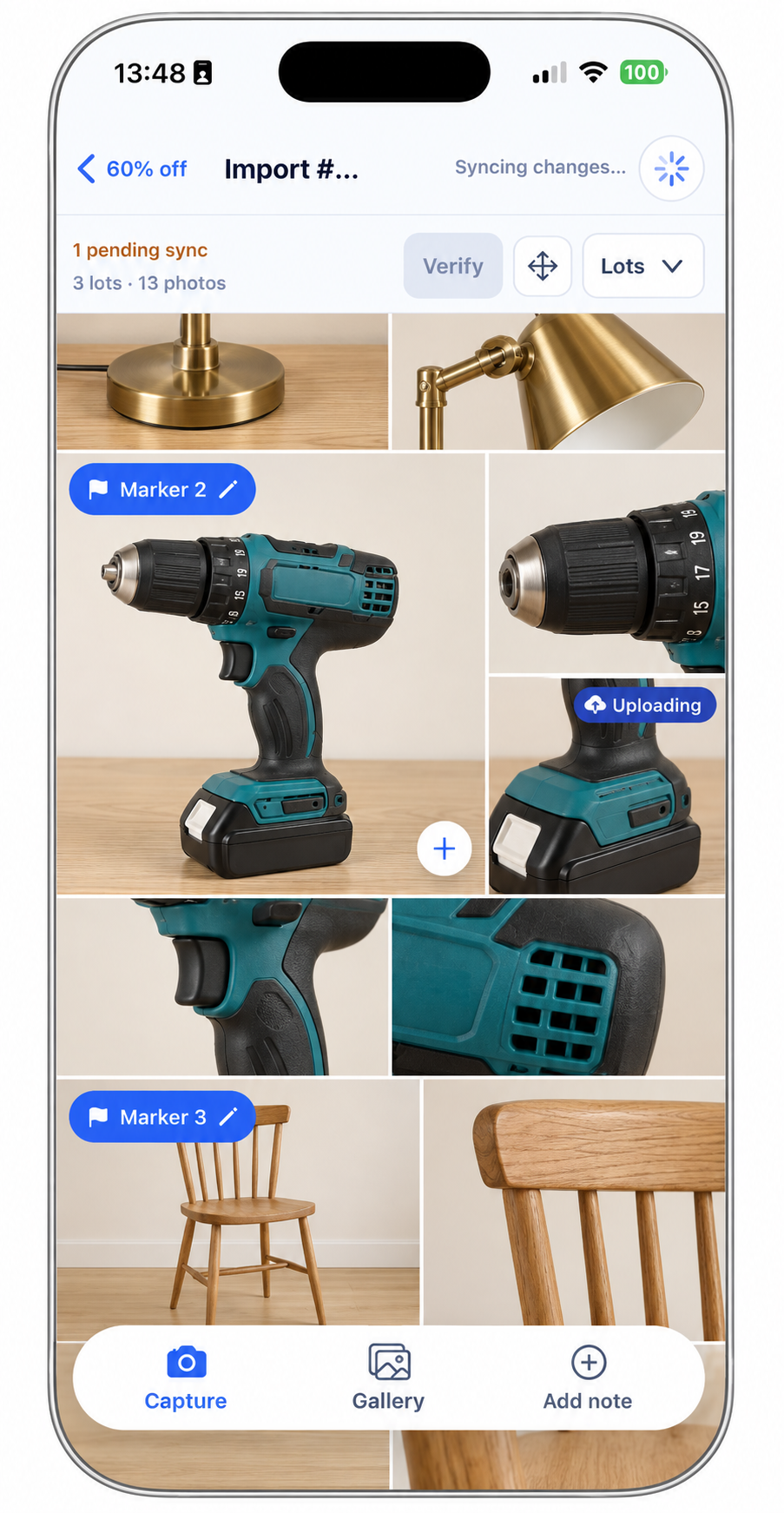
This screen shows an upload in progress. The replacement has not finished syncing yet.
Allow the change to sync according to your Automatic or Manual setting. Then check the updated photo in the same organization and import on the web.
Good practice: make edits that help buyers see the item clearly. Keep condition details visible and check the finished photo before continuing with listings.
Product photos in these screenshots are edited examples.
Next: fix photos in the wrong lot or find your photos on the web.