
Where Did My Photos Go?
Find your aListEngine photos by organization, folder, and import, with a simple visual walkthrough.

In this article
Your photos first appear in an import, which is a batch of photos inside a folder. They reach the web after syncing.
1. Find the batch on your phone
Open the folder where you were working, then open your import.
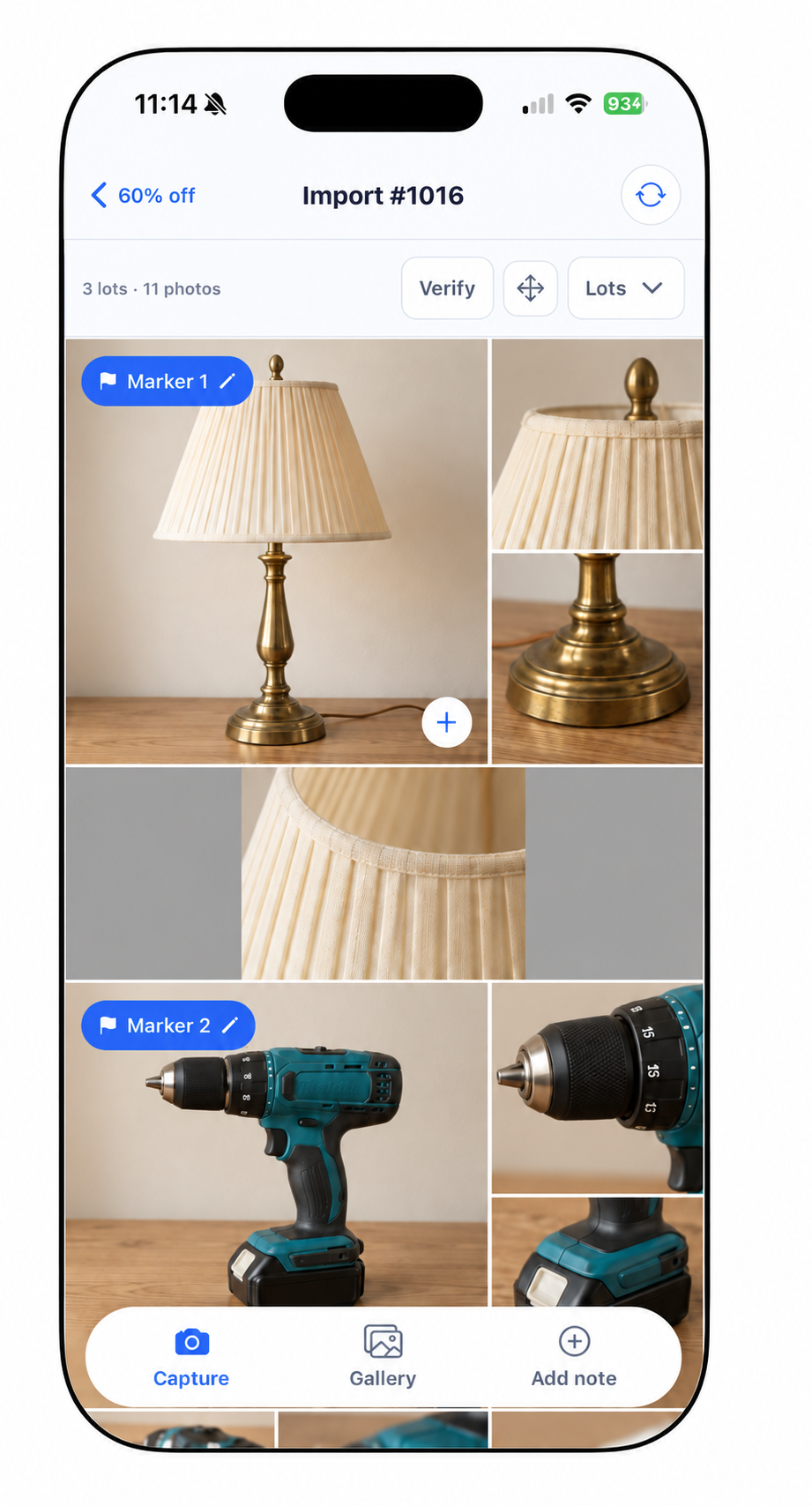
Look at the top: this example is in 60% off, in Import #1016. Write down your own folder name and import number.
2. Open the same folder on the web
Check that you have selected the same organization you used on your phone. Open your folder, then click the small arrow beside Bulk Import.
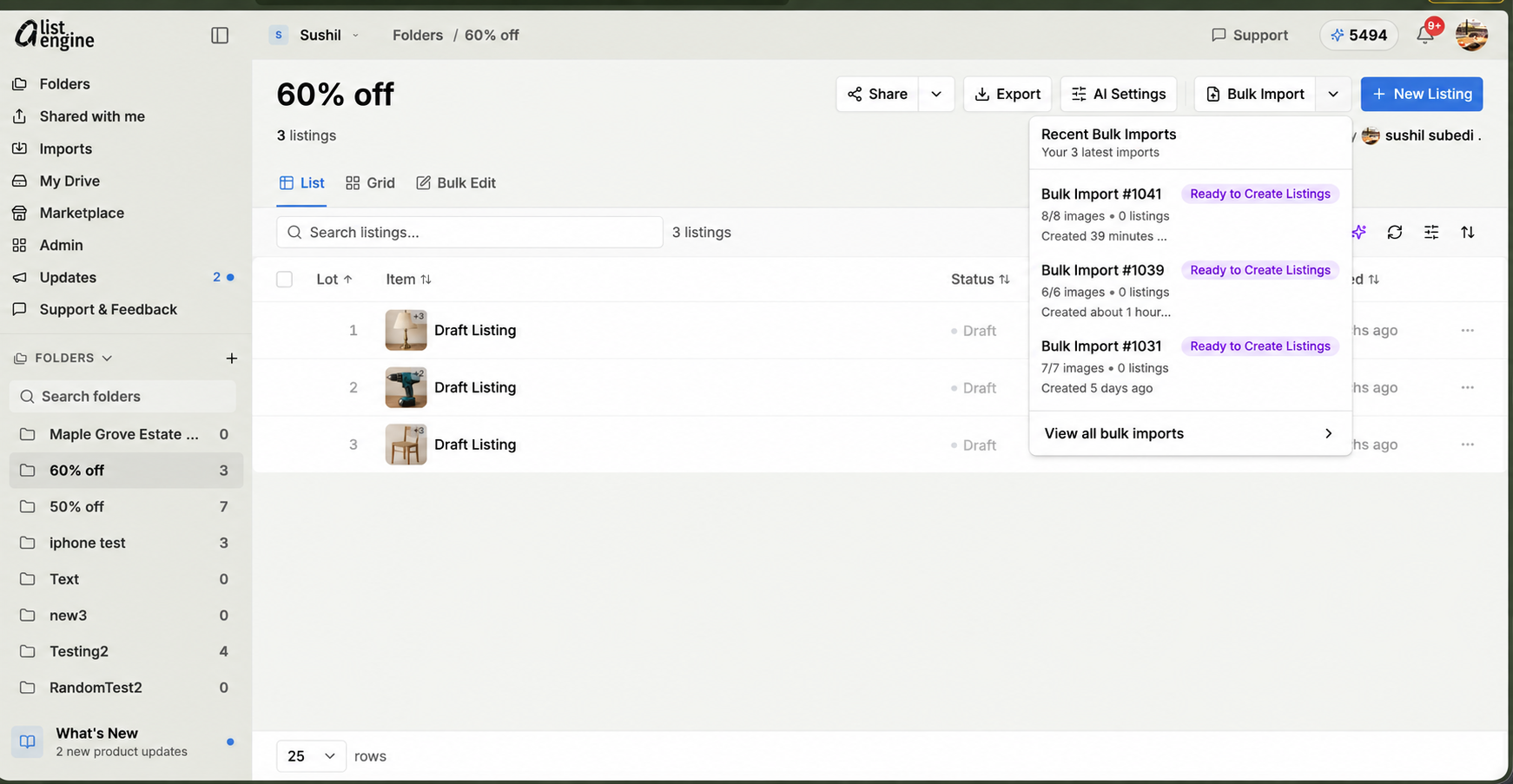
Choose your import from Recent Bulk Imports. If it is older, click View all bulk imports.
You can also open Imports in the left sidebar.
3. Look inside the import
Open All Images to see the photos in that batch.
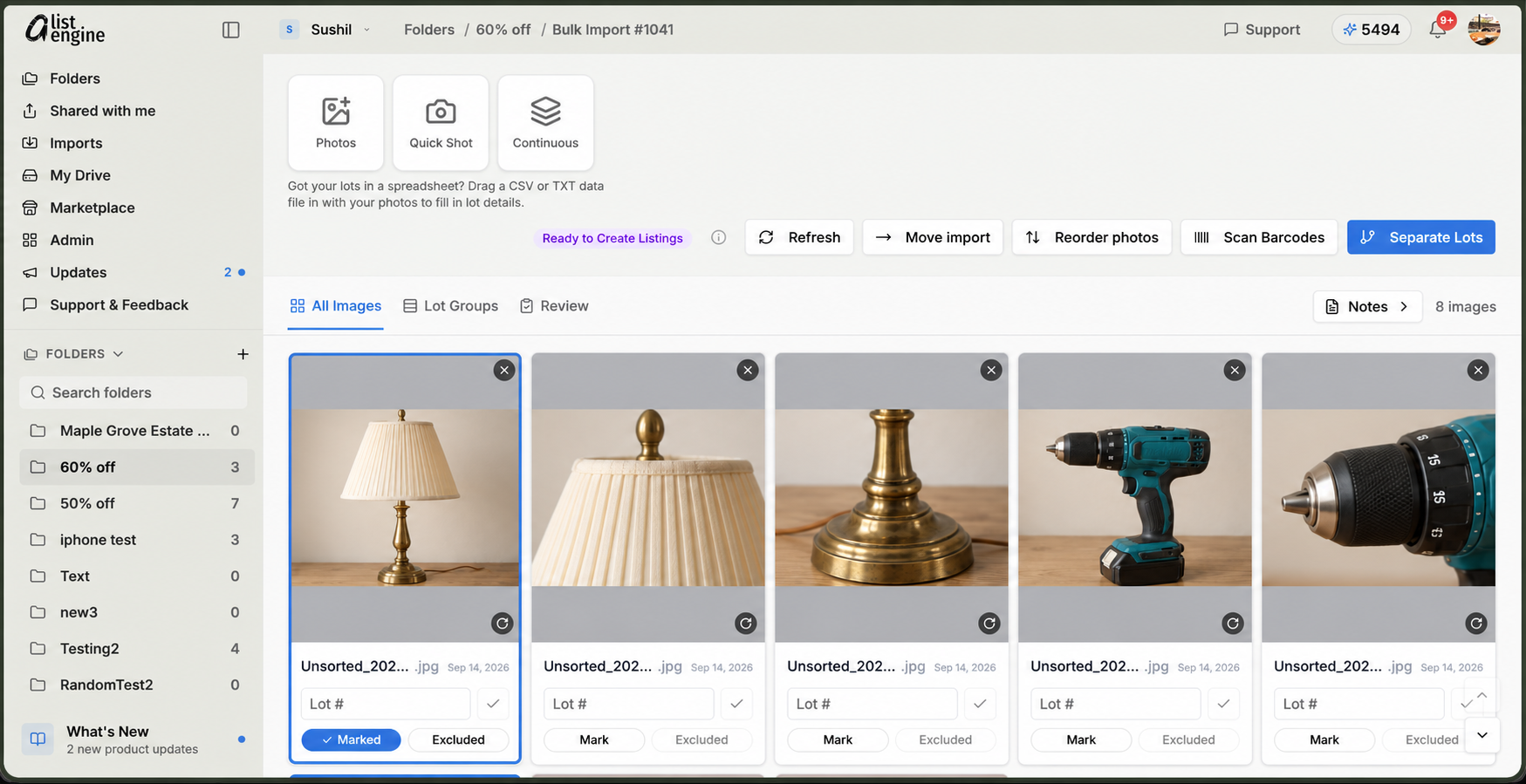
Photos can be here even when the import has 0 listings. Listings are created in a later step.
These screenshots use sample products and different example import numbers. When checking your own work, match the same import number on both devices.
What you should see when you are done
Your expected photos appear inside the correct import on the web. Open a few photos to check the items and details.
Still cannot find them?
Check the organization, folder, and import number again. If the photos are on your phone but missing on the web, check whether syncing has finished.
Photos taken in aListEngine do not need to appear in your phone’s Photos library. Media Backup controls additional copies there.