
How Do I Know My Photos Are Saved?
Check that your photos are saved on your phone, understand upload status, and confirm they reached your aListEngine account.

In this article
Saved on your phone means the app has a local copy. Synced means your work has reached your aListEngine account. Check both before finishing a session.
1. Check the photos in your import
Open the import you were working on. Tap a photo to check it.
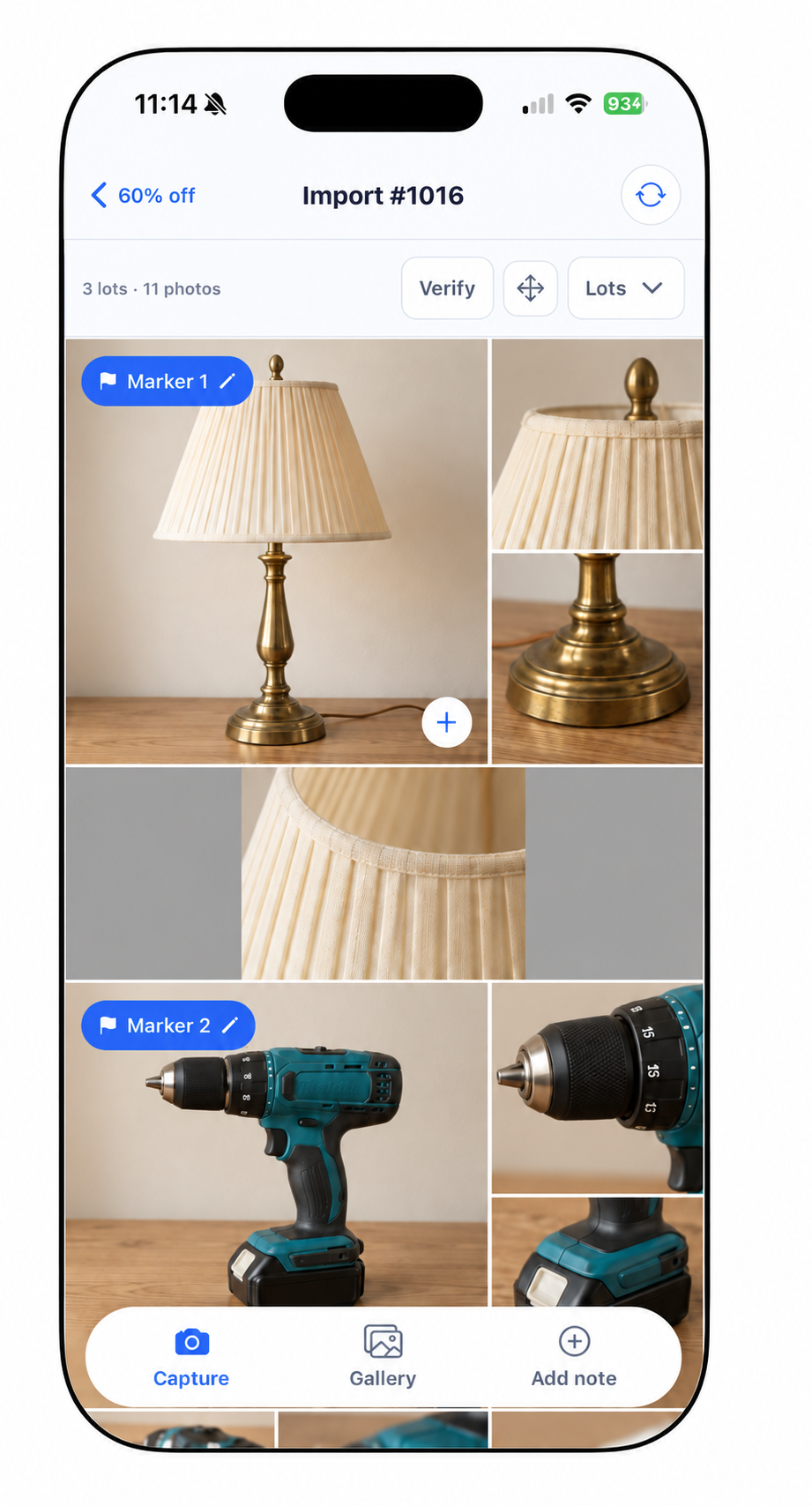
Make sure the photos you expected are present. Seeing them here does not by itself confirm that they reached the web.
2. Look for unfinished uploads
Read the status at the top of the import and on the photos.
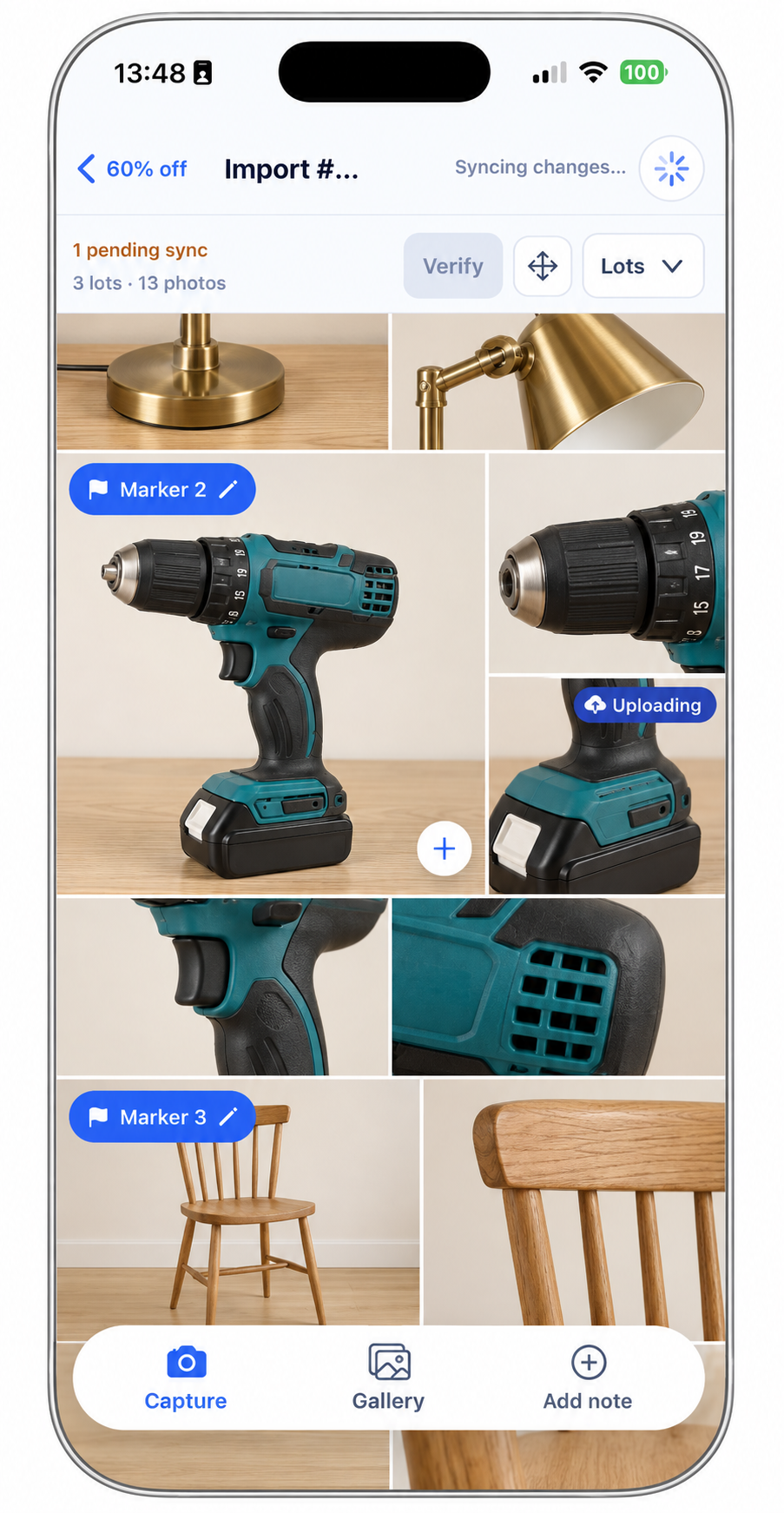
This example is still syncing. Wait before treating it as finished.
- Pending sync: changes still need to finish syncing.
- Uploading: a photo is being sent.
- Attaching: the upload is being connected to the import.
- Sync failed: open Settings → Sync Help to check the problem.
Keep the app open on a reliable connection while the batch finishes. If you use Manual, tap Sync in Folders when ready. See the sync settings guide.
3. Check the current status
Open Settings and read Sync status for your current organization. Look for All changes synced.
Last change synced is the time of a previous successful change. That time alone does not tell you whether newer photos are still waiting.
4. Confirm the photos on the web
Open the same organization and import on the web.
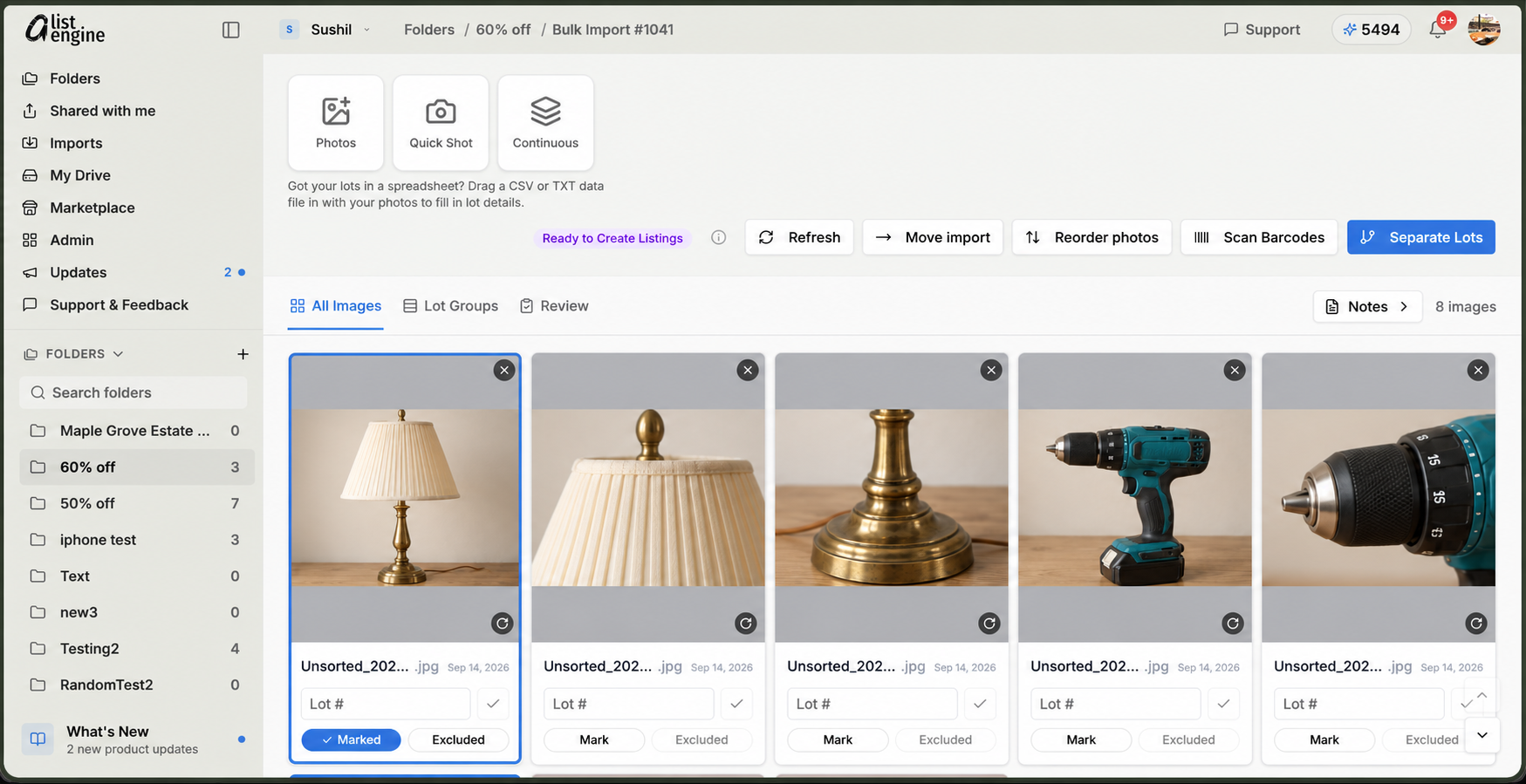
Compare your photo count and open a few images. These examples show different import numbers; use the same import on your own devices.
What you should see when you are done
All changes synced appears in Settings, and the expected photos are visible in the correct web import.
If work stays pending or needs attention, open Sync Help. Keep the app and its photos in place while checking the issue.
Next: find your photos on the web or save extra backup copies.