
How to Import Photos from Your Gallery
Add existing photos to an aListEngine import or a specific lot, then check their order and grouping.
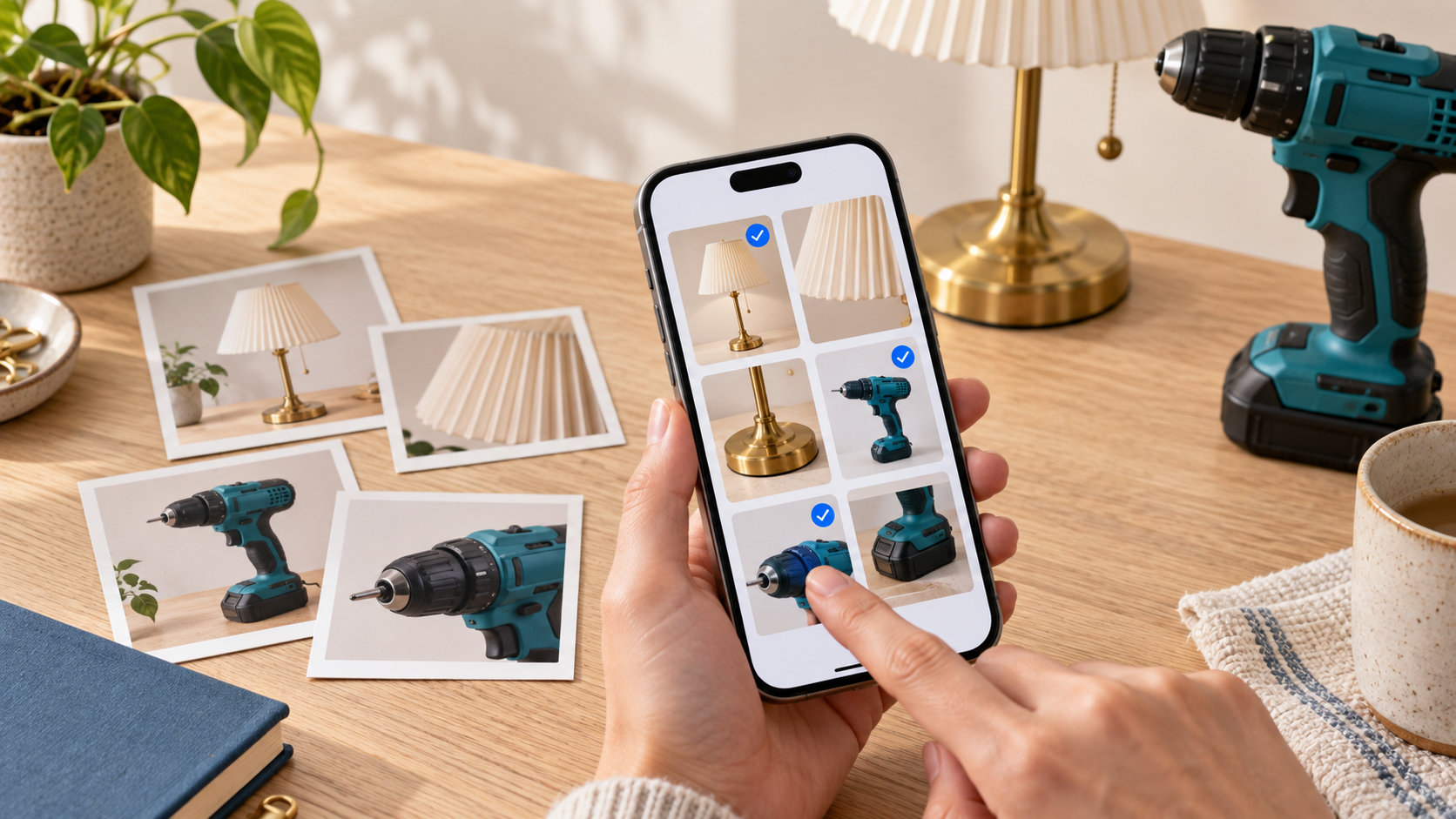
In this article
Already took the photos? Add them from your phone’s gallery, then check which lot each photo belongs to.
1. Open the destination
Open the correct folder and import. Tap Gallery at the bottom of the import screen.
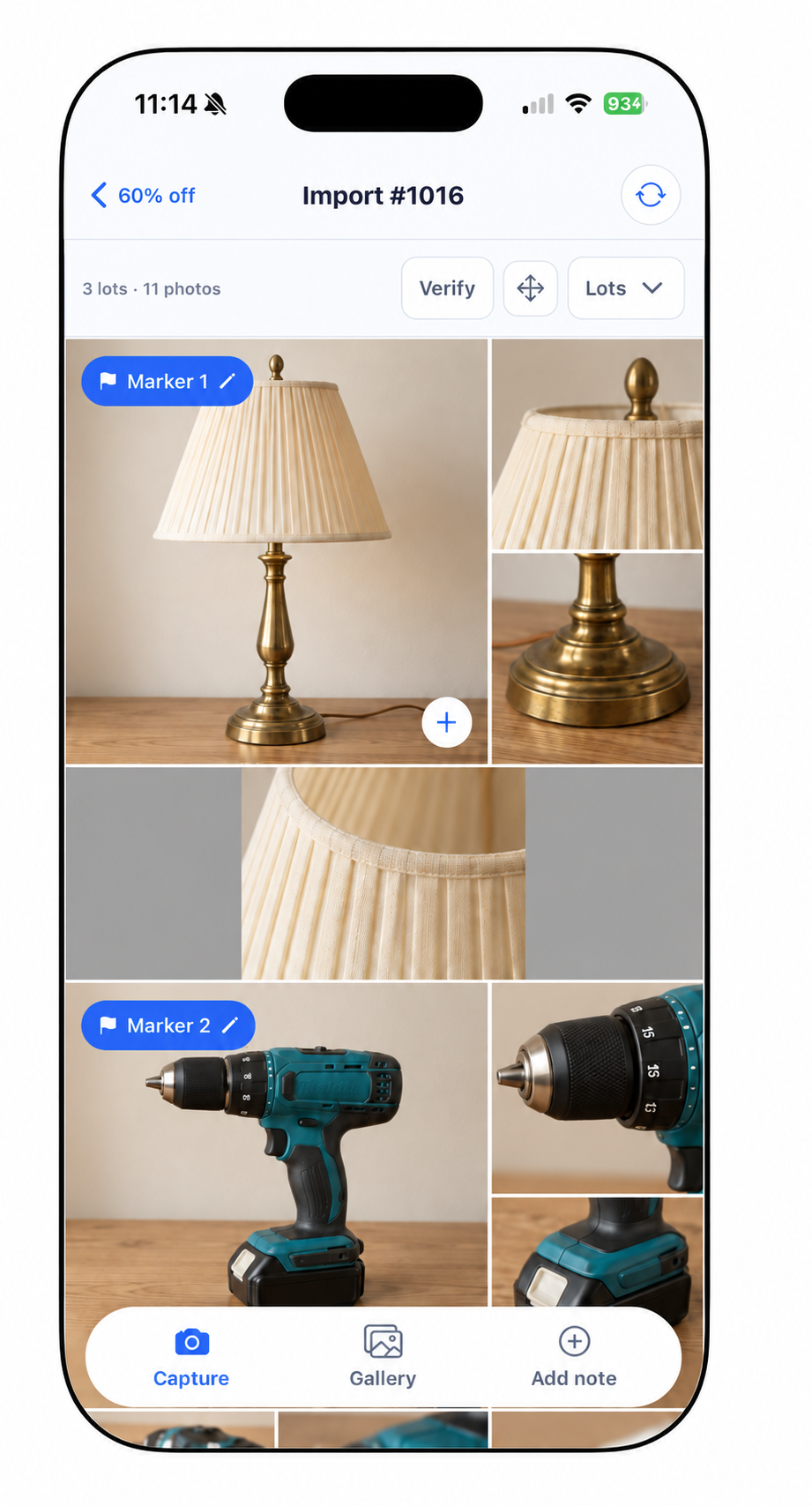
Gallery adds existing photos. Capture opens the camera. The product photos shown here are edited examples.
2. Select the photos
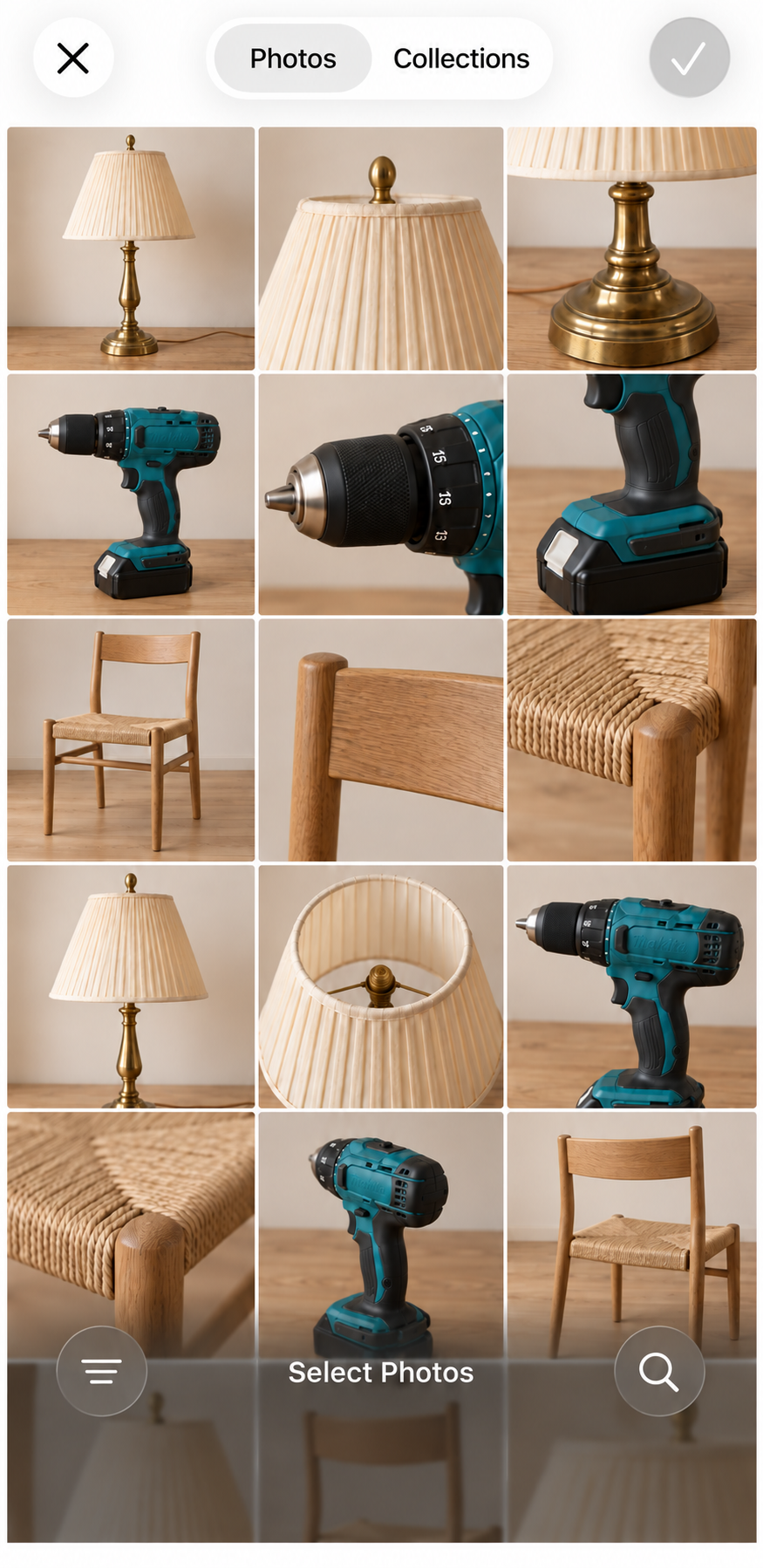
Tap the photos you want to import. This iPhone picker shows edited sample products before any photos are selected.
Allow access if your phone asks. Select the photos you want to add and confirm using your phone’s picker. Its button labels can differ between iPhone and Android.
Choose only the photos for this batch. Keeping each item’s views together makes the next check easier.
3. Check the import
Wait for the confirmation that photos were added. Review their order in the import rather than assuming your phone’s gallery order is correct.
Photos added to the batch still need the correct lot boundaries. Use the rearrange control if the order needs changing.
4. Add photos to an existing lot
For an extra detail photo, tap the + on the intended lot and choose Choose from gallery. Select the extra photos and confirm.
These photos are added to that lot. Check the result before moving on.
5. Sync when ready
Confirm that every photo is present and grouped correctly, then sync the import. Adding gallery photos does not create finished web listings by itself.
Good practice: import a small batch first. Avoid selecting the same photos again while the first addition is still running.
Next: fix a photo in the wrong lot or find your photos on the web.